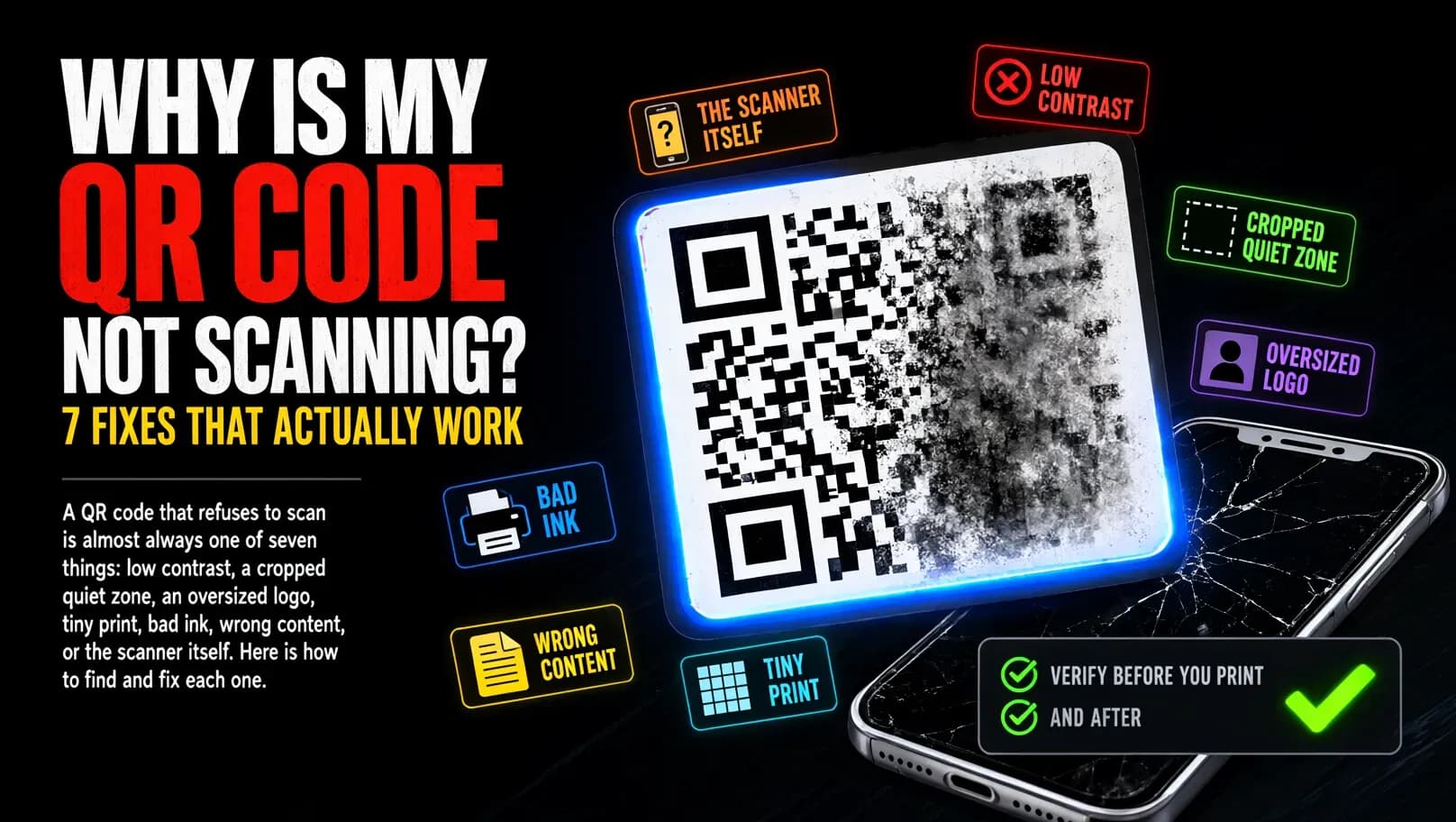
"My QR code does not work" is the most common QR problem, and it is also the most fixable — because almost every unscannable code is one of seven things. Work through them in order, starting with the cheapest to check, and you will find the cause in a minute.
One thing first, because it changes everything: a QR code does not expire and does not break with time. A static code contains its content directly and depends on no server. If a code that scanned yesterday refuses to scan today, something changed in the print, the content, or the scanning conditions — not the code itself.
Step 0. Separate the two failures
Before fixing, identify which of these is happening:
- The camera will not lock onto the code at all. This is a design or print problem — contrast, quiet zone, size, ink. Fixes 1–5 below.
- The camera scans it, but the wrong thing happens — the wrong page opens, Wi-Fi fails to connect, "page not found." The code scans fine; the content inside it is wrong. That is fix 6, and no design change will help.
And a baseline test for either case: recent Android and iOS phones decode QR codes with the built-in camera, no app needed. If a third-party scanner fails, try the native camera before you redesign anything.
1. Low contrast
The number one cause. A scanner reads the ratio between the dark modules and the light background; below roughly 4:1 it starts to fail, and light-gray-on-white fails from the first try.
The fix. Dark modules on a light background — black on white is the reference case. If you styled the code, check both directions: a light code on a dark background only works with scanners that support inverted codes, and most cameras will simply refuse to look.
How to check. FileConv's generator warns you when the contrast between foreground and background is too low, and its scan check re-decodes the exact exported image — so if the check passes, contrast is not your problem.
2. Cropped quiet zone
The white border around the pattern is not decoration — it is part of the spec, and scanners use it to find the code's edges. When a code gets placed in a design, that border is the first thing layout tools crop away.
The fix. Keep at least 4 modules of margin on every side. If the code sits next to text or graphics, increase the margin — "next to" is not the same as "separated from."
How to check. The generator measures the quiet zone and warns when it is narrow. On a finished print, hold the phone at a distance and see whether the code locks in: a cropped margin makes the lock unstable and distance-sensitive in a way that is easy to notice once you know what you are looking for.
3. A logo that is too large
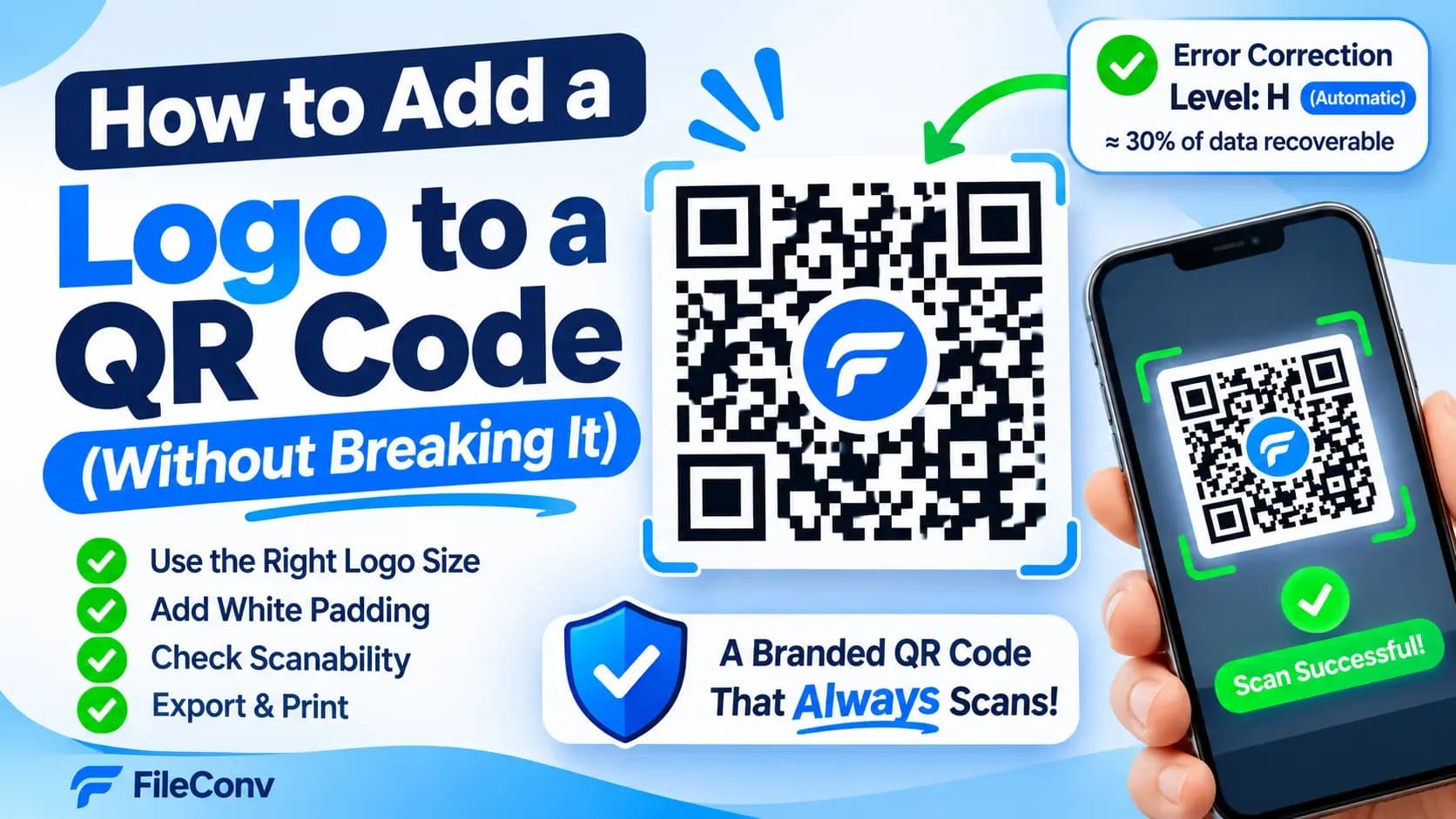
A logo covers modules. Error correction rebuilds what is covered — up to about 30% of the data at level H — but only if the code is set to that level. A big logo on a level-L code hides more than the code can recover, and the result is a pretty code that nothing can read.
The fix. Smaller logo, padding ring on, error correction H. The logo guide has the sizing rules; the short version is "start at a quarter of the code width and let the checker decide."
How to check. The generator measures logo coverage, warns when it is large, and — decisively — its scan check decodes the image with the logo in place. A pass with the logo means the logo is not your problem.
4. Tiny print on a dense code
Long content — a long URL, a long Wi-Fi password, a full vCard — encodes to hundreds of modules. Print that grid at 1 cm and each module is a fraction of a millimeter: below the camera's resolution, the pattern becomes noise.
The fix. Print it larger, or reduce the density. If the content is long, shorten it (a URL shortener is the usual tool); if the print size is fixed, lower the error correction level to make the same content encode to fewer modules.
How to check. The generator tells you the export resolution relative to the module count, and warns when each module gets too few pixels. For print, aim for at least 2–3 cm of physical size on typical content — the sizing section of the QR code guide covers it.
5. Degraded printing
A code that scans on screen and fails from a printed page is usually the print, not the code: blur from a low-resolution file, faded or bled ink, a halftone dot pattern from a newspaper-style printer, glare from glossy laminate, or a pattern that is simply worn — scuffed, smudged, folded.
The fix. Export at a resolution that gives each module several pixels (the generator lets you pick 256 to 4096 px), print on plain matte paper for the first test, and keep the modules solid — dark on light, no gradients across the pattern.
How to check. Compare: scan the file on a screen, then scan the print. If the file passes and the print fails, the problem is in the reproduction step, and re-exporting at higher resolution and re-testing is the loop.
6. The content inside is wrong
If the camera locks on and the result is wrong — wrong website, "Wi-Fi password incorrect," a dead link — the code is doing exactly what you told it to. The content it contains is the problem.
- URL: a typo is permanent once printed. Check the encoded URL character by character, not by memory.
- Wi-Fi: the password in the code must match the network right now — if the router password changed since you made the code, the code still holds the old one.
- Long content: past a certain length the code stops encoding cleanly; if the tool told you the content was too long for the error correction level, that is the cause.
The fix. Regenerate with the corrected content. This is the one case where no design change helps — and the scan check will confirm it, because a code whose content is wrong decodes to something other than what you typed.
7. The scanner, the light, the distance
Last, because it is also the most common non-problem:
- Lighting. Direct glare, deep shadow, and strong backlight (holding the print up to a window) all defeat a camera. Test in normal room light.
- Distance and angle. Dense codes need to be closer and more square-on than sparse ones. If it works at 30 cm and fails at a meter, that is size (fix 4), not a defect.
- The device. A very old camera or a blocked lens will fail on codes that a current phone reads in a second. Test on two devices before you conclude anything.
Verify before you print — and after
The loop that catches all of the above:
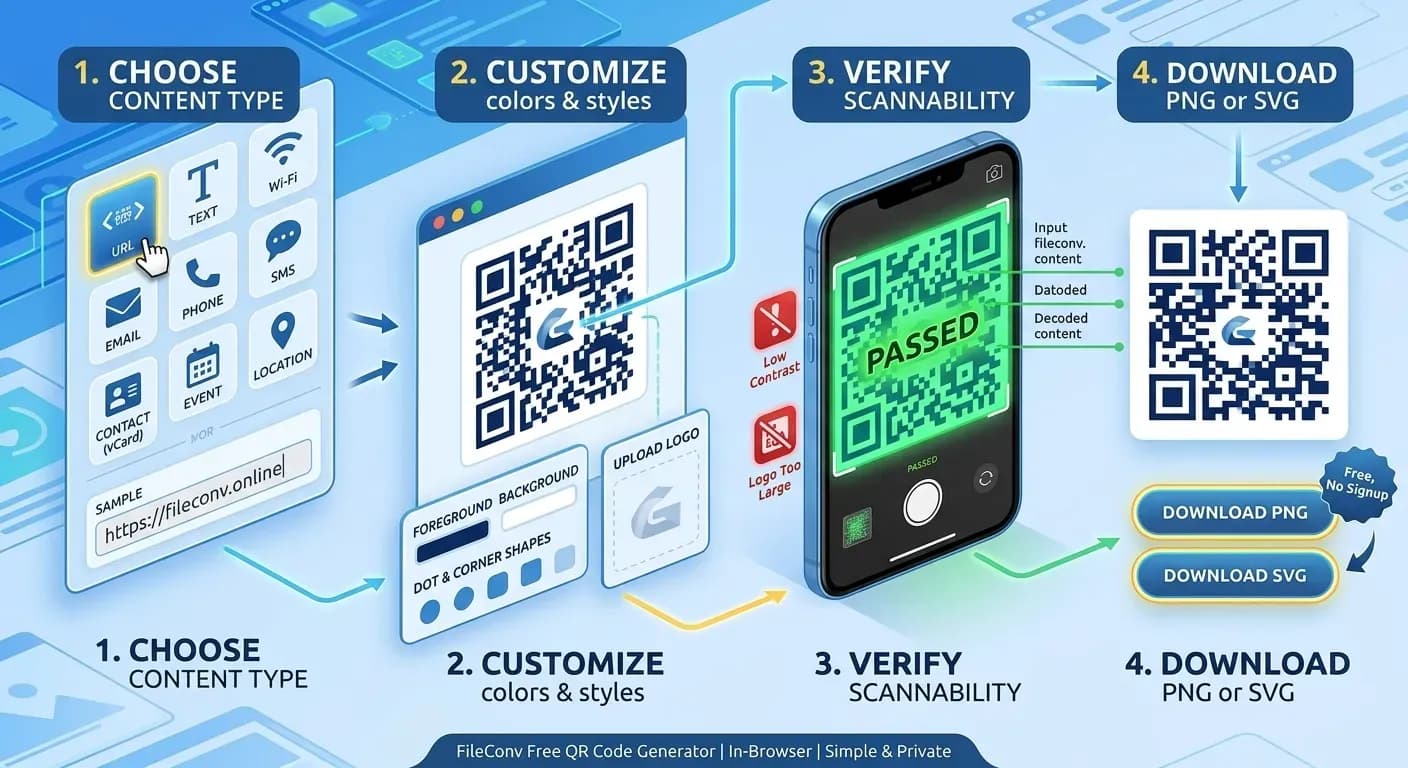
- In the tool: make the change, run the scan check. It re-decodes the exact image you are exporting and only passes when the machine reads back exactly what you entered — and it flags low contrast, narrow quiet zone, and oversized logo specifically, with a fix for each.
- On screen: scan the exported file with the phone camera.
- In print: scan a physical copy at the size and in the light where it will actually live.
Step 1 catches design errors before ink; step 3 catches everything that only exists in the real world. A code that passes all three is, for practical purposes, done.
If you are not rebuilding from scratch, start with the step-by-step guide — it covers content types, styling, and export sizes — and keep in mind that a static code has nothing to expire: when one fails, the cause is always in the list above.
Frequently asked questions
My QR code worked yesterday. Why does it not scan today?
Codes do not expire. Something changed: a reprint at lower quality, a different password on the network it points to, or the scanning conditions (light, device, distance). Re-run the three-step check above and the changed item shows up.
Why does it scan on my phone but not my friend's?
Usually it does not — test on two or three devices. One device failing is often lighting, lens, or camera age. A code that fails on two devices is a code problem: check contrast, quiet zone, logo size and print size in that order.
The code scans but the wrong page opens. What now?
The code is fine; its content is wrong. Check the encoded URL character by character, regenerate with the correct content, and re-scan. No design change fixes wrong content.
Does low-quality paper make a QR code unscannable?
Glossy, low-contrast, or halftone printing can, yes — it changes the contrast and the module edges the camera reads. Print matte with solid dark modules on light paper, and export at a resolution that keeps each module several pixels wide.
How do I know my code will scan before I print it?
Decode the exact image you are exporting. The QR code generator's scan check does exactly that and passes only when the decoded result matches your content — then confirm with a real phone, on screen and in print.
Rebuild your code and check it as you go → open the free QR code generator