A QR code is one of the rare pieces of technology that genuinely takes seconds to make — if you know what you are doing. This guide walks through exactly how to make a QR code from scratch: what content goes inside it, how to style it, how to confirm that it actually scans, and which file format to download for screen or print.
Everything below runs in your browser with FileConv's free QR code generator. There is no signup, no upload, and no watermark — the code you download is yours.
What is a QR code?
A QR (Quick Response) code is a two-dimensional barcode: a grid of dark and light modules that machines read with a camera. Compared to older one-dimensional barcodes, a QR code can store far more data — a web address, a phone number, an email draft, contact details, or even the password for a Wi-Fi network.
Two properties matter for everything that follows:
- The content is encoded in the pattern. A URL QR code literally contains the URL. Nothing is fetched from a server when someone scans it.
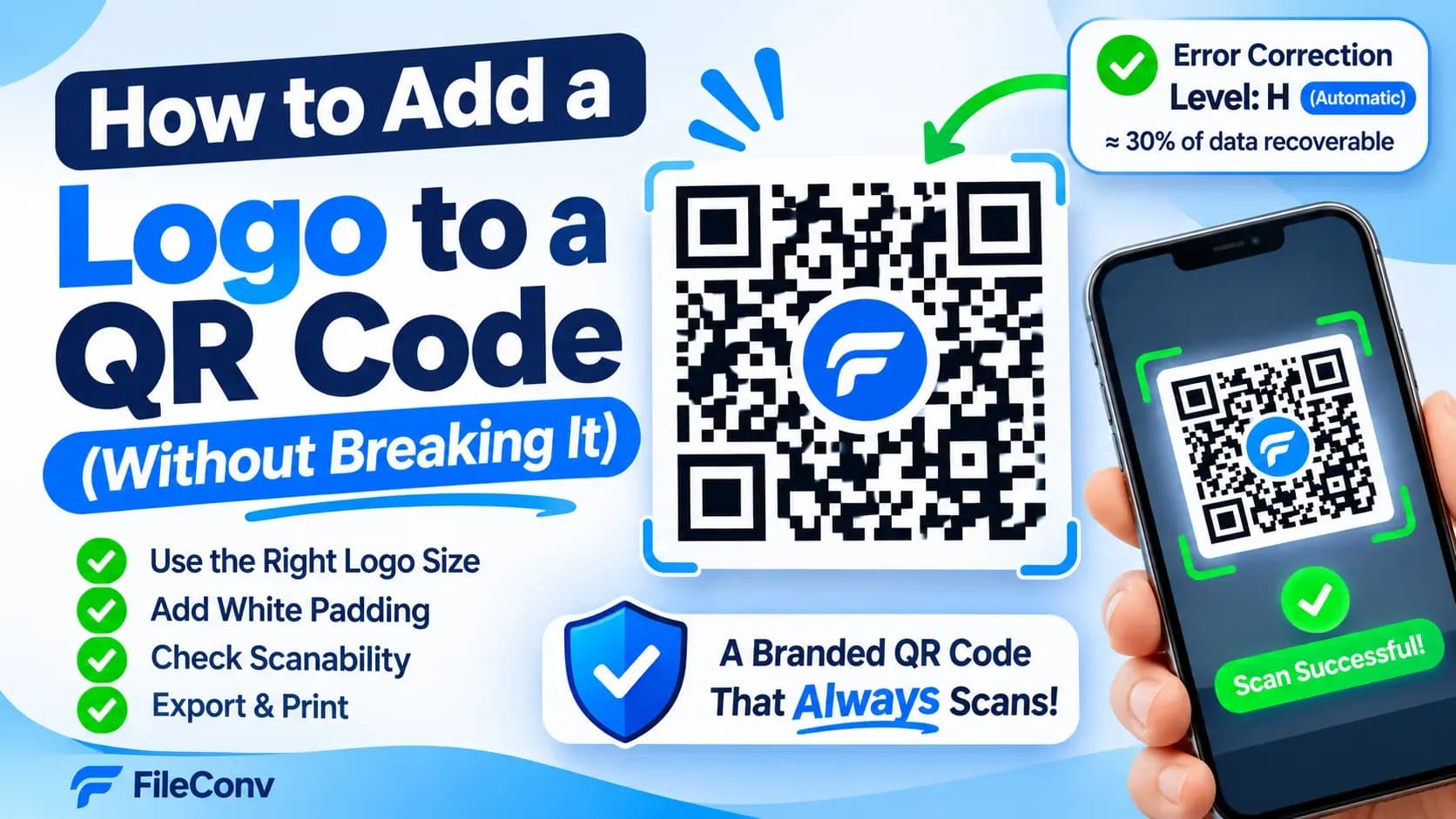
- Error correction is built in. Every QR code carries redundant data so it can survive scratches, small logos, and imperfect prints. The error correction level (L, M, Q or H) trades capacity for resilience — FileConv sets it automatically: M for a plain code, H the moment a logo is present.
What can you put in a QR code?
People usually assume a QR code only opens a website. In practice, phones act on many different payload types, and FileConv's generator supports nine of them:
| Content type | What happens when someone scans it | Example |
|---|---|---|
| URL | Opens the web page | https://fileconv.online |
| Plain text | Displays or copies the text | A note, an address, a code |
| Wi-Fi | Offers to join the network | SSID + WPA/WPA3 password |
| Opens a pre-filled email draft | Address, subject, body | |
| Phone | Starts a call | tel:+12025550123 |
| SMS | Opens a text with a prefilled message | Appointment reminder |
| Contact (vCard) | Offers to save the person to contacts | Name, phone, email, address |
| Calendar event | Offers to add the event | Title, start, end, location |
| Location | Opens the coordinates in maps | Latitude and longitude |
If you are not sure which type you need, ask what the scanner should do after the scan: open a page? call someone? join a network? The action decides the type.
How to make a QR code: step by step
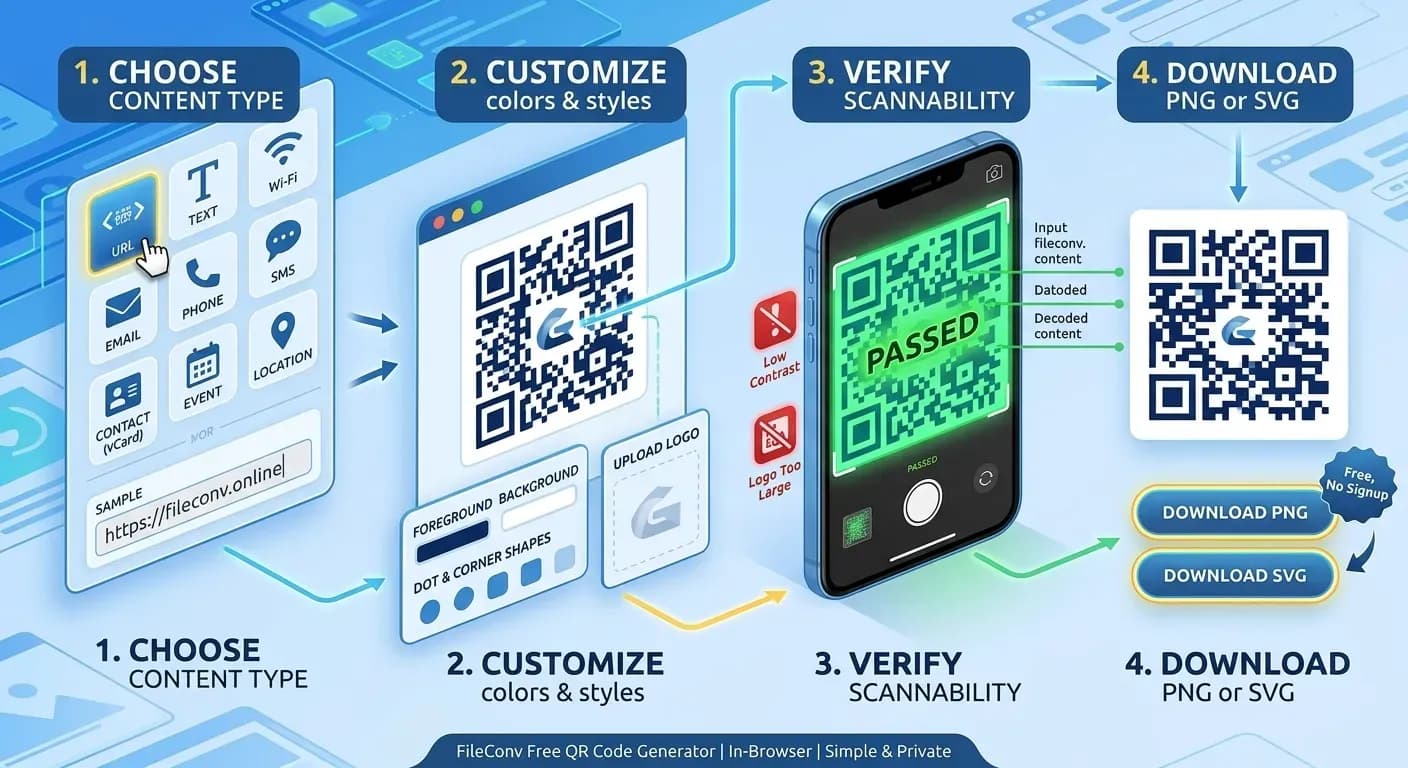
Step 1. Choose the content type and enter your data
Open the QR code generator and pick a content type from the list. Then fill in the fields for that type. A few practical notes:
- URL: paste or type the address. If you omit
https://, the generator adds it automatically and tells you so — double-check long URLs, since typos are permanent once printed. - Wi-Fi: enter the network name (SSID), the security type, and the password. The tool builds the standard
WIFI:payload for you, including escaping special characters. - Contact: fill in at least a name; every other field is optional and empty fields are simply omitted from the vCard.
- Long text: QR codes have a capacity limit. If content gets too long for the code at its error correction level, the generator tells you to shorten it.
Step 2. Customize colors, style, and logo
Customization is optional, but it is where most "unscannable QR code" problems start — so do it deliberately:
- Colors: pick a foreground (module) color and a background color. The generator warns you when the contrast between the two is too low for reliable scanning. Dark-on-light is the safe default; light-on-dark only works with scanners that support inverted codes.
- Dot and corner styles: square, rounded, circular and other shapes are cosmetic. They do not change how much data fits or how reliably the code scans, as long as contrast and quiet zone stay intact.
- Quiet zone (margin): the white border around the pattern is part of the spec. Keep at least 4 modules of margin, and never crop it away when you place the code in a design.
- Error correction: this is automatic, not a setting you choose. The generator runs a plain code at M (~15% of the data recoverable) and switches to H (~30%) the moment a logo is present — the level a center logo needs to stay scannable.
- Logo: upload a PNG, JPEG or WebP (up to 2 MB) and adjust its size. A logo is safe only when it covers a small central area — the built-in checker measures the coverage and warns you if it gets too large.
Step 3. Check scanability before you download
This is the step most online generators skip, and it is the difference between "it looks fine" and "a phone actually read it."
FileConv's generator re-decodes the exact image that will be exported — the same pixels your printer or screen will show — and compares the result with the content you entered. A pass means a machine read back exactly what you typed. It also reports low contrast, a narrow quiet zone, or a logo that covers too much of the pattern, with a concrete suggestion for each warning.
A scan check is not a guarantee of real-world performance: extreme lighting, very small prints, and glossy paper can still cause problems. But if the check fails on screen, the code will almost certainly fail in the hand.
Step 4. Download as PNG or SVG
Choose an export size (256 to 4096 pixels) and a format:
- PNG for photos, documents, most printers, and anything that needs to be pasted into another tool.
- SVG when you need true vector output — it scales losslessly from a business card to a poster, so you can print one file at any size.
Download the file, then test it: scan it with your phone before you rely on it.
What size should a QR code be?
There is no single "correct" size — it depends on where the code lives and how dense the pattern is. As rules of thumb:
- On screen (web pages, presentations): 200–300 px wide is plenty; the generator's 512 or 1024 px export gives you headroom for high-density screens.
- Print (business cards, labels, flyers): aim for at least 2 cm × 2 cm (about 0.8 in) of physical size for typical content, and export at a resolution that keeps each module at several pixels. For a code printed at 3 cm with roughly 30 modules across, 1024 px is comfortable; very dense codes should go to 2048 or 4096 px.
- Large formats (posters, vehicle wraps): print the code larger than you think — from two meters away, a 5 cm QR code is hard to frame with a phone.
Whatever the size, keep three things constant: high contrast, an intact quiet zone, and a scan check that passed at the size you are exporting.
Static QR codes: what you get, and what they cannot do
The generator produces static QR codes: the content is written directly into the pattern. That has two consequences worth understanding before you print.
The good news is permanence and privacy. A static code works without internet beyond the content itself, does not depend on any service staying online, and never expires — a menu QR printed today still opens the same page in five years. And because nothing is sent to a server, there is no tracking and no account to manage.
The trade-off is flexibility: you cannot change the destination of a printed static code. If your URL moves, you generate a new code and reprint it. If that would hurt you — for example, a campaign where the landing page changes monthly — then a dynamic QR code (a short link managed by a service) may be worth its cost and dependency. The static vs dynamic comparison covers how to decide.
Common mistakes that make QR codes unscannable
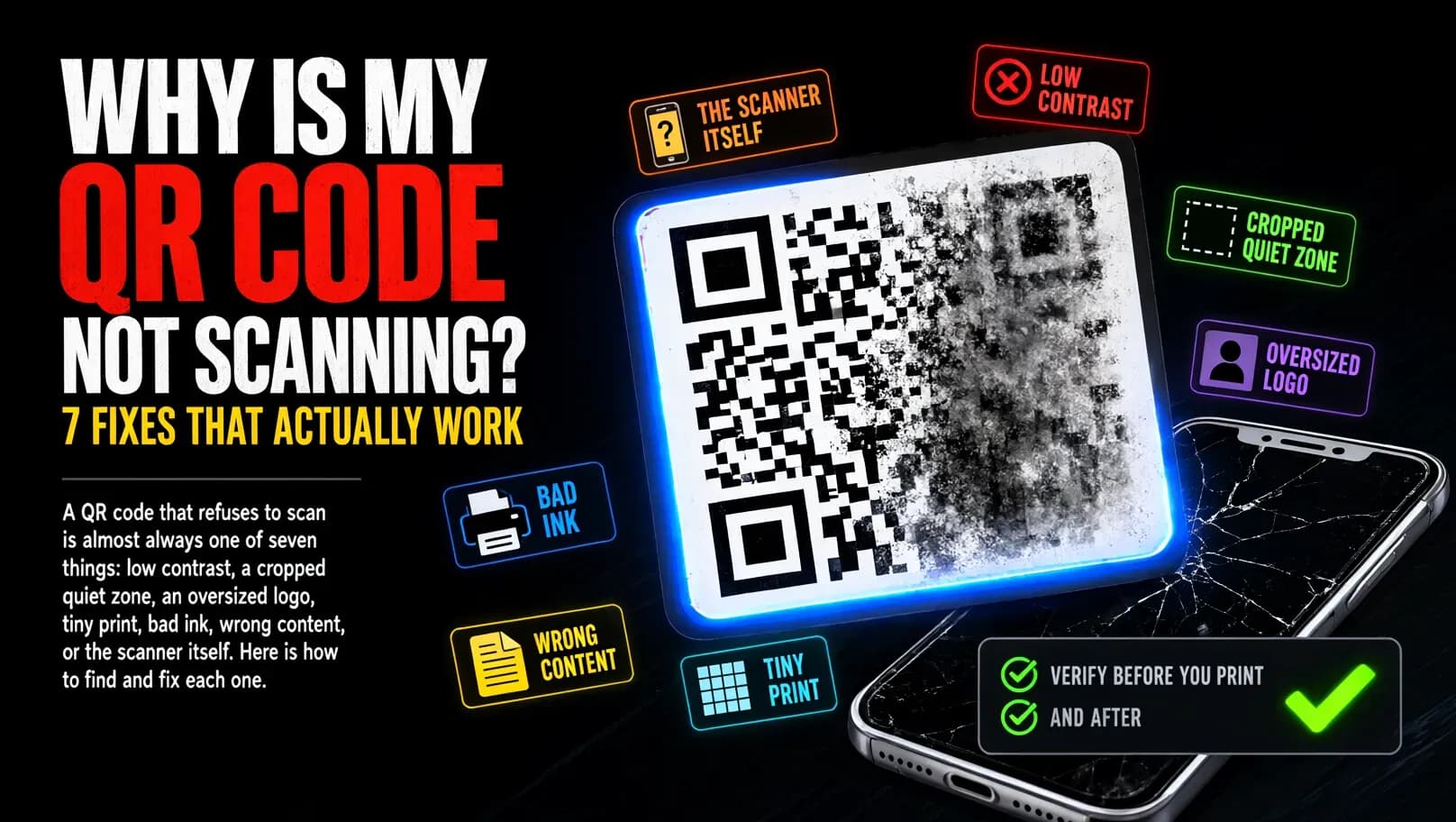
Most "my QR code does not work" reports come from one of these:
- Low contrast — light gray modules on white, or colored-on-colored with a ratio below ~4:1.
- Cropped quiet zone — the white border removed in layout software, so the pattern touches other graphics.
- Logo too large — covering more than roughly 25–30% of the center. Even at the automatic level H, a logo that big covers more than the code can recover.
- Tiny print on a dense code — long URLs at high error correction create hundreds of modules; at 1 cm they blur into noise for cameras.
- Unverified long content — a typo in a URL or Wi-Fi password that nobody caught because nobody scanned it before printing.
The step-3 scan check catches all of these except real-world lighting and paper quality, which is why you should still test a printed copy on a real phone.
Frequently asked questions
How long does it take to make a QR code?
Usually under a minute: enter the content, optionally style it, run the scan check, download. There is no account step in between.
Is it really free?
Yes. The generator is free with no watermarks and no generation limits, and it asks for neither an email address nor a credit card.
Do I need an app to make or scan a QR code?
No. Making happens in any modern browser, and scanning works with the built-in camera on recent Android and iOS devices — no third-party scanner needed for either step.
What format should I download?
PNG for immediate use and most printing workflows; SVG when you want one file that stays sharp at every size. Both are available from the same code.
Will my QR code expire?
No. Static QR codes store their content in the pattern itself, so they do not depend on a server or subscription and keep working indefinitely. The only way to change what a printed code does is to generate and print a new one.
Ready to make your own? Create a free QR code now →