A QR code with a logo in the middle looks professional — and it is one of the fastest ways to make a code fail. The logo covers part of the pattern, and if the code cannot recover what the logo hides, scanners simply give up.
The good news: a logo is a solvable problem. QR codes are built with error correction precisely for this case. If you size the logo sensibly, keep a padding ring around it, and verify the result, a logo is one of the safest customizations you can make.
This guide walks through how to add a logo to a QR code with FileConv's free QR code generator — and how to confirm it still scans before you print it.
Why QR codes can survive a logo
Every QR code carries redundant data. The error correction level determines how much of the pattern can be damaged — or covered — and still be read. In FileConv this is automatic: level M for a plain code, and level H the moment a logo is present, because a logo needs the extra redundancy to stay scannable. Here is what each level can recover:
| Level | Recoverable damage | Good for |
|---|---|---|
| L | ~7% | Plain codes, no logo |
| M | ~15% | Default, light wear |
| Q | ~25% | Worn prints, small logos |
| H | ~30% | Logos, harsh conditions |
So the mechanics of a logo are simple: the logo hides some modules, and error correction rebuilds them. If the hidden portion stays under what the level can recover, the code scans. If it does not, it does not — and nobody gets a warning on screen. That is exactly why the verification step below matters.
Two practical consequences:
- A logo always costs capacity and resilience. The same content encodes to a denser code at level H than at level M. Long content plus a logo is where most "my QR code does not work" stories start.
- The logo is not the problem; the size is. A small logo with padding is safe. A logo that fills the center is not, regardless of what it depicts.
Step 1. Prepare the logo
Before you open the tool, prepare the image:
- Format: PNG, JPEG or WebP, up to 2 MB. A PNG with a transparent background is the safest choice — it means there is nothing behind the logo to fight with your QR background color.
- Shape: square logos are easiest to work with. If your logo is a wide wordmark, consider a compact icon or monogram version instead; a wide logo has to be larger (and cover more of the code) to stay legible.
- Contrast: the logo's colors should read clearly on the QR background. A white logo on a white code is invisible to humans and useless to scanners alike.
- Resolution: the logo only needs to be sharp at its final size. A 512–1024 px logo is more than enough for print at QR-code scale; do not ship a 20 MB master file.
Step 2. Add the logo in the generator
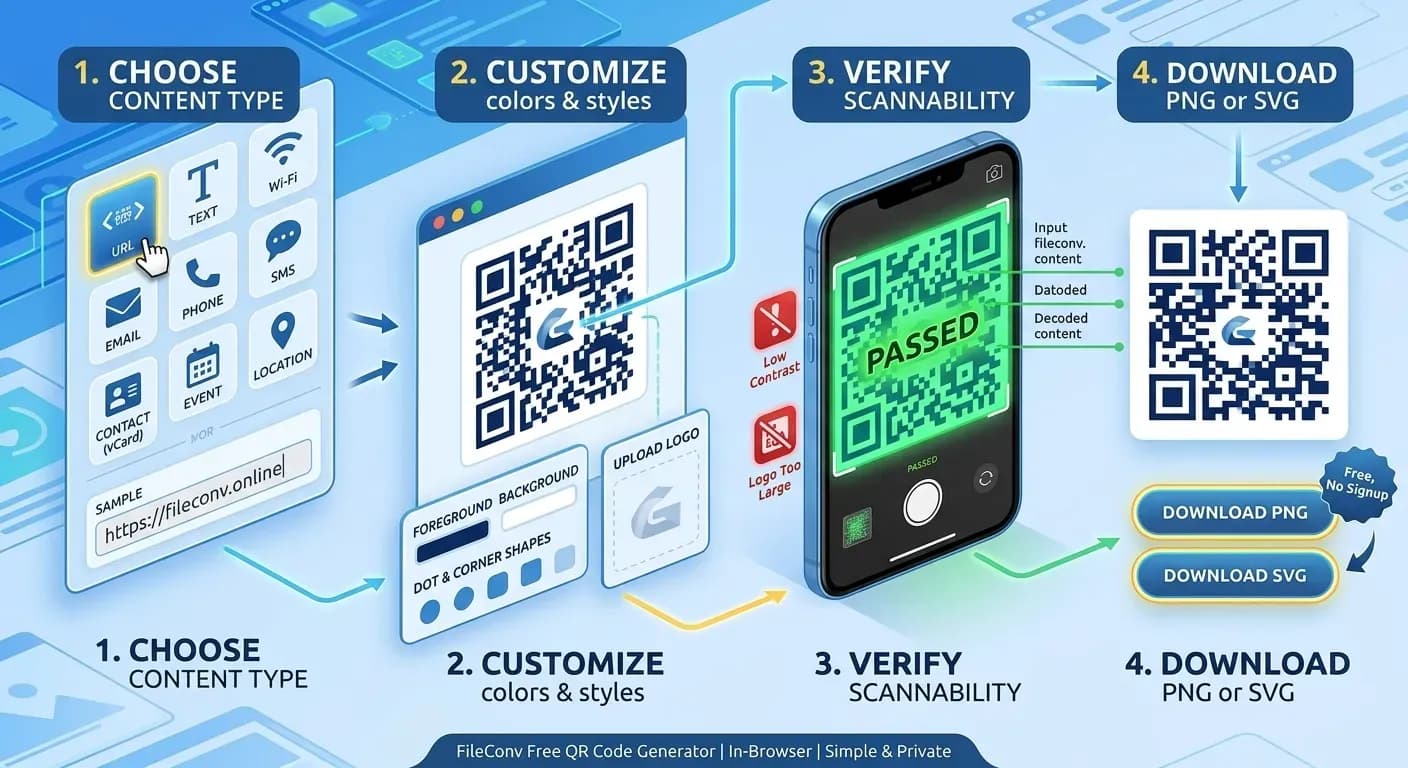
Open the QR code generator, choose your content type, and enter your content. Then:
- Upload the logo in the center-logo section (PNG, JPEG or WebP, max 2 MB). The image is processed in your browser — it is never uploaded.
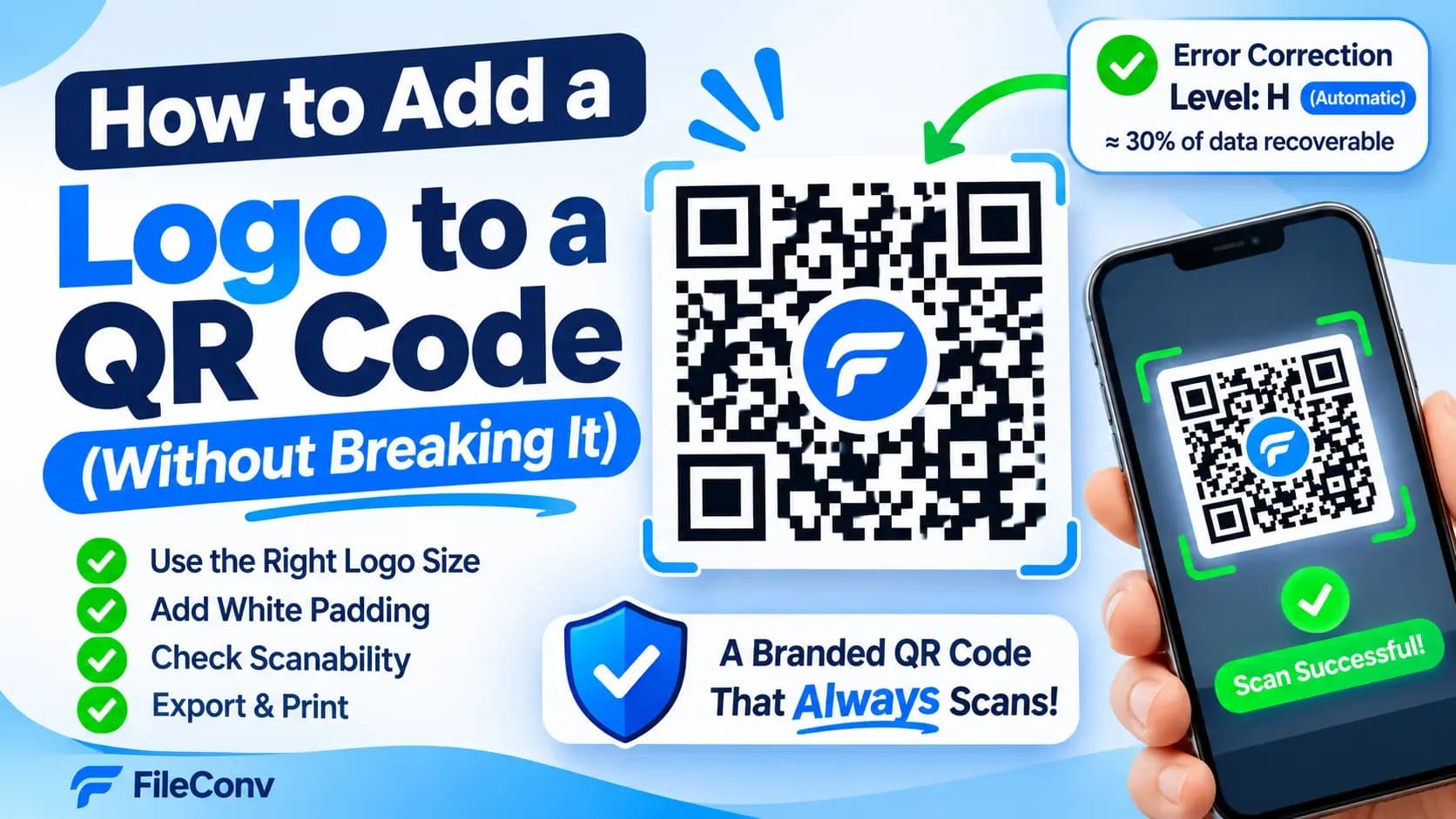
- Set the logo size. Start small, not large. A safe starting point is roughly one quarter of the code width. You can always make it bigger; you cannot un-cover a module that breaks the code.
- Add white padding. The generator offers a padding ring behind the logo. Keep it on: it is the visual and technical buffer between your logo and the pattern, and it is what makes a logo look intentional instead of pasted on.
- Leave error correction to the tool. It is automatic: the moment a logo is present, the generator switches the code to level H (~30% recoverable data) — the level that makes a center logo work. Remove the logo and it drops back to level M.
How big is too big?
There is no universal percentage, because it depends on how dense your content is — but these rules hold up in practice:
- Keep the logo to roughly 25% of the code width as a starting point, then let the checker decide.
- The padding ring counts as protection, not as logo. A 15%-width logo with a 10% padding ring covers less than a 25% logo with no ring.
- Watch density. A short URL at level M is a small, sparse code — a logo of a given size covers a lot of it. The same logo on a dense, high-error-correction code covers proportionally less.
- Trust the measurement, not the preview. The generator measures the logo's coverage of the module grid and warns you when it gets large. A logo that "looks fine" at preview size is exactly the one to double-check.
Step 3. Check scanability before you download
This is the difference between "it looks branded" and "a phone actually read it."
FileConv's generator re-decodes the exact image that will be exported — logo included, padding included — and compares the decoded result with your content. It reports:
- Low contrast between foreground and background (or between your logo and its surroundings),
- Logo coverage that is getting too large,
- Quiet zone width if the margin is narrowing,
- and a pass/fail on whether the machine read back exactly what you entered.
If the check passes with your logo in place, a machine has demonstrably read your code with the logo covering the pattern. If it fails, the tool tells you which part of the arrangement is the cause — usually "reduce the logo" or "increase the quiet zone" — and you fix exactly that.
A scan check is not a guarantee of real-world performance (extreme lighting and very small prints can still cause problems), but it catches every design mistake a logo can introduce, before ink meets paper.
Step 4. Export and test
When the check passes:
- Export size: 256 to 4096 px depending on where the code will live. For print, aim for a size that keeps each module at several pixels.
- Format: PNG for documents and most printers; SVG when the code will be scaled (SVG stays crisp from business card to poster).
- Physical test: scan a printed copy with a real phone. The scan check covers the design; the printed test covers ink, paper, lamination and your environment.
If you are not sure where to start with the content itself, the step-by-step QR code guide covers every content type the generator supports — URL, Wi-Fi, contact, email, phone, SMS, calendar event, location, and plain text.
Common logo mistakes
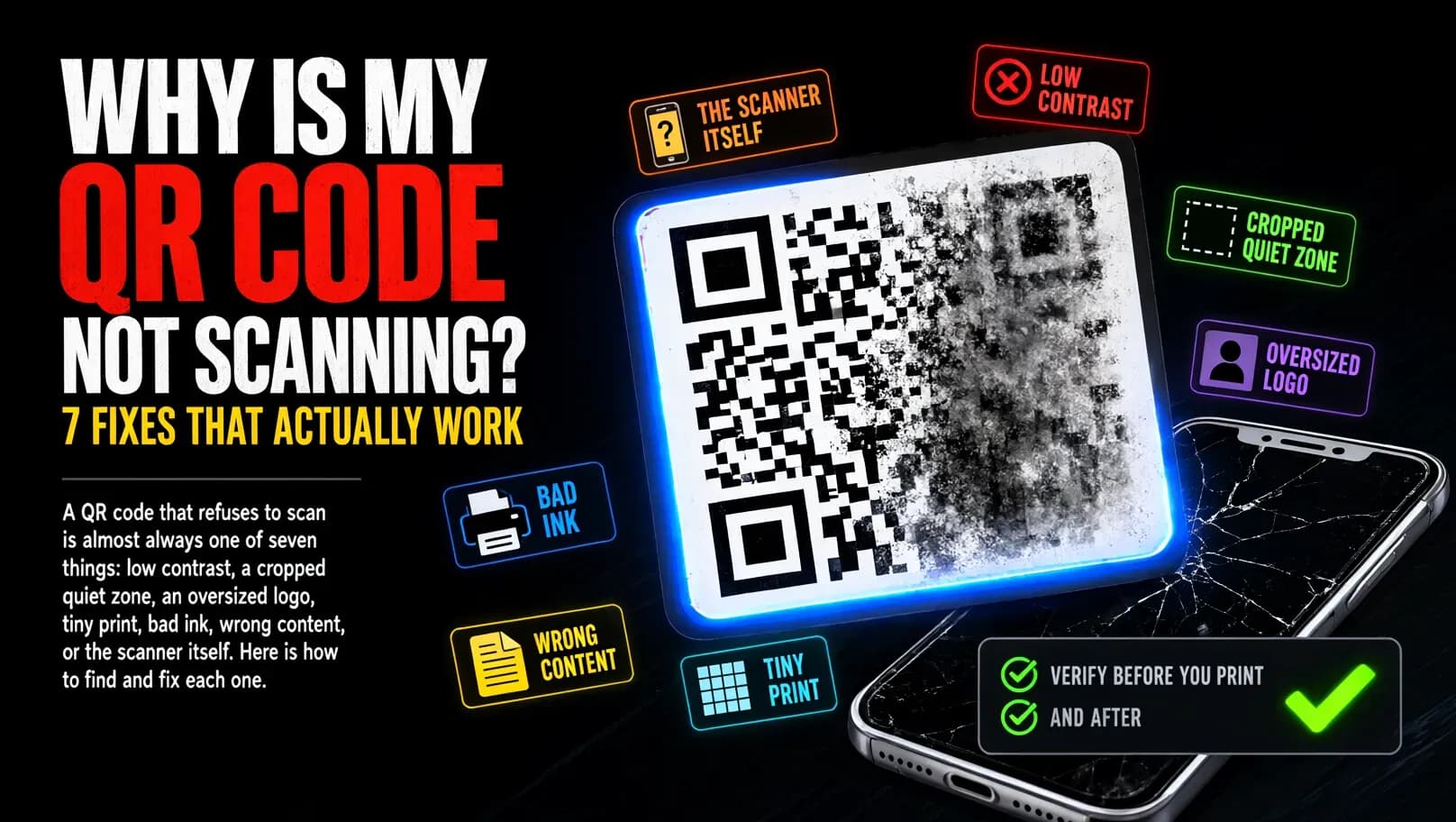
Most "logo killed my QR code" reports are one of these:
- Logo at 50%+ of the code width. Even with the automatic level H, a logo that covers half the pattern will stop scanning. The fix is a smaller logo.
- No padding ring. The logo touches the pattern directly, so every anti-aliased edge eats into the modules.
- Low-contrast logo. A light-gray logo on a white code, or a logo whose colors match the modules, reads as "damaged" to a scanner.
- Wide wordmark instead of an icon. The wordmark has to be big to be legible, so it covers the center. Use an icon or monogram at QR scale.
- Long content + logo + high error correction = tiny print. The code gets dense, then small, then unscannable from a meter away. Shorten the URL or accept a plain code for the small format.
If you are debugging a code that already misbehaves, the QR code not scanning guide walks through the diagnosis in order.
Frequently asked questions
Can a QR code with a logo still be scanned?
Yes — that is the whole point of error correction. At level H a QR code can recover about 30% of its data, which is what makes a center logo possible. The logo must stay within that budget, and the scan check in the generator confirms it.
How big can the logo be?
Start around a quarter of the code width, keep the padding ring on, and let the generator switch error correction to H automatically — a center logo needs it. The generator measures the actual coverage and warns you if the logo gets too large; its scan check is the final word.
What file format should the logo be?
PNG, JPEG or WebP, up to 2 MB. A transparent-background PNG is the safest choice because nothing behind the logo needs to match the QR background.
Does the logo have to be centered?
Centering is the convention for a reason: the center of the pattern is where error correction has the most room to rebuild what is covered. Off-center logos hide modules in places the code is less forgiving about losing.
Will adding a logo make my code less durable?
A little — that is the trade. The logo covers modules permanently, and level H makes the pattern denser than level M for the same content. The scan check tells you, before you print, whether the result is still comfortably readable.
Want to try it? Add a logo to a QR code in your browser →