Most people compress images one at a time: open a photo, lower its quality, save, and repeat. A bulk image compressor removes that repetition. You upload a whole set of images — ten, fifteen, twenty — apply one compression level to the entire batch, and download the results together, usually as a single ZIP. That is what "bulk" (also called batch) compression means: one pass over many files instead of one pass per file.
This guide explains what a bulk image compressor is, how to compress multiple images at once, which settings produce the best results, and what file-size reduction you can realistically expect in 2026.
What Is a Bulk Image Compressor?
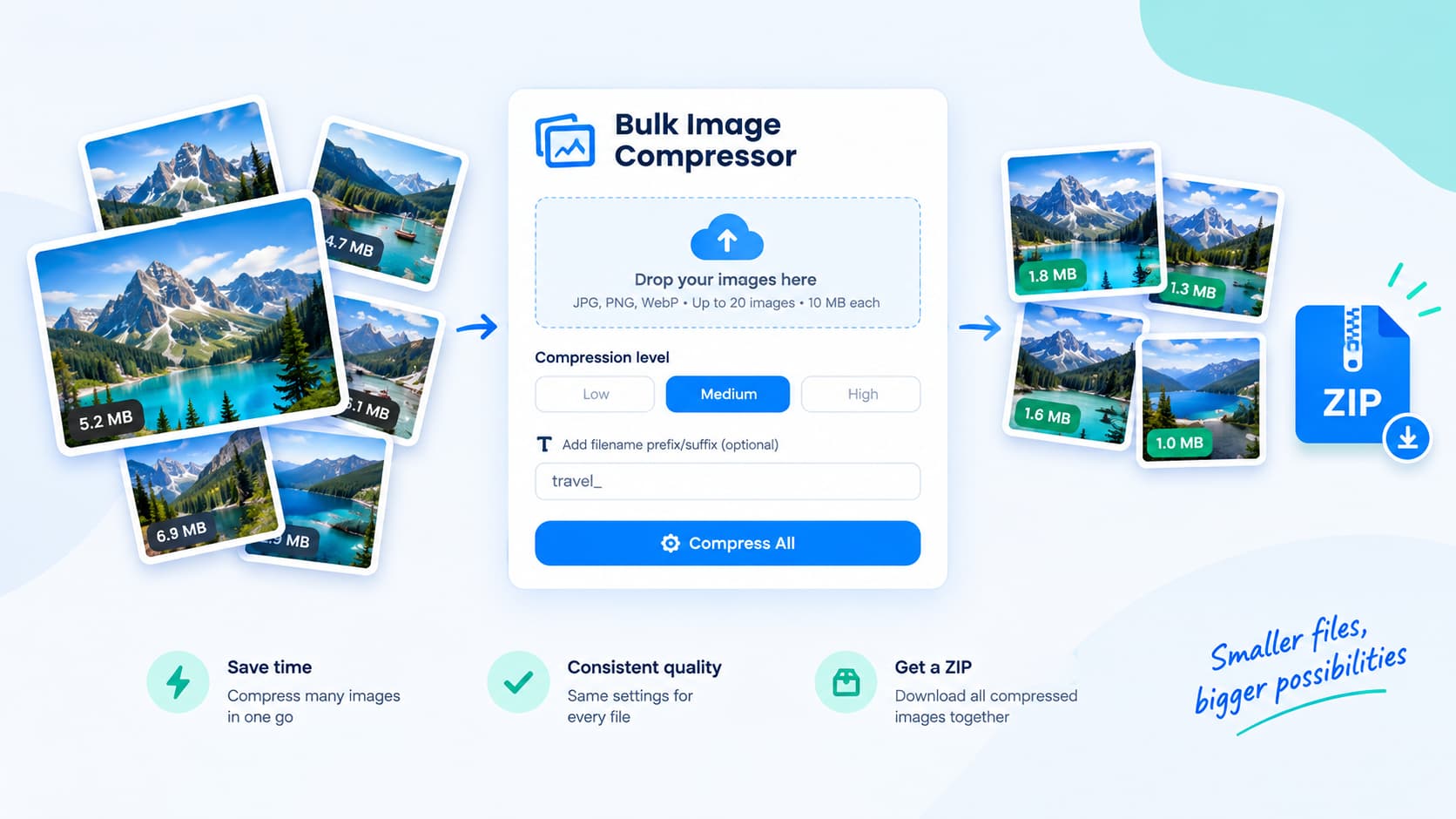
A bulk image compressor is a tool that accepts several images in a single session and compresses every file with the same settings. A typical session works like this:
- You upload a batch of JPG, PNG, and WebP files.
- You choose one compression level (plus optional renaming) that applies to the whole batch.
- The tool processes every file and returns smaller versions — individually, or all together as one ZIP.
Because the settings are applied uniformly, every image in the batch ends up with consistent quality and consistent filenames. That consistency is the point of batching: a folder of fifteen product photos compressed one by one in a desktop editor rarely ends up with identical settings, but a single bulk pass guarantees it.
You will also see this tool described as a bulk images compressor, a batch image compressor, or a "compress multiple images at once" tool. All of those names refer to the same workflow.
Why Compress Images in Bulk?
Three reasons make bulk compression worth it even when you could technically compress files one by one.
Consistency
A website, email campaign, or product listing looks professional when every image is treated the same way. One compression pass over the whole set means the same quality level, the same naming pattern, and the same metadata handling on every file. Hand-compressing images one at a time is where settings quietly drift.
Speed
Compressing twenty images individually means twenty open/save cycles. A bulk session is one upload, one settings choice, one download. For large sets — a season of product photos, a folder of event pictures, a blog archive — the time saving is the whole point.
Uniform results you can ship
When the output is a single ZIP of uniformly named, uniformly compressed files, you can upload it straight to a website, attach it to an email, or hand it to a client without a cleanup pass first.
Bulk Compression vs Compressing One Image at a Time
| One at a time | Bulk (batch) | |
|---|---|---|
| Settings per file | Easy to drift between files | Identical across the whole batch |
| Filenames | Manual renaming, if any | Prefix/suffix applied to every file at once |
| Output | Many separate downloads | One ZIP with the whole set |
| Best for | A single photo | Folders, product sets, email attachments, archives |
Compressing one image at a time is fine for a single photo. Bulk compression wins as soon as you have a set of images that should be treated identically.
How to Compress Multiple Images at Once
With a free online bulk image compressor, the whole process takes about a minute.
Step 1 — Collect your images
Gather the JPG, PNG, and WebP files you want to compress into one place. A bulk session works best when the images share the same purpose (product photos, blog graphics, a photo album), because one compression level can be applied to all of them.
Step 2 — Upload the batch
Open the tool and drag the whole folder of images into the upload area. A session accepts up to 20 images, each up to 10 MB, covering the common web formats: JPG, PNG, and WebP.
Step 3 — Choose your compression level and rename options
Pick one compression level for the batch:
- Low compression — smallest file size reduction, maximum detail. Best for photos you plan to print or crop later.
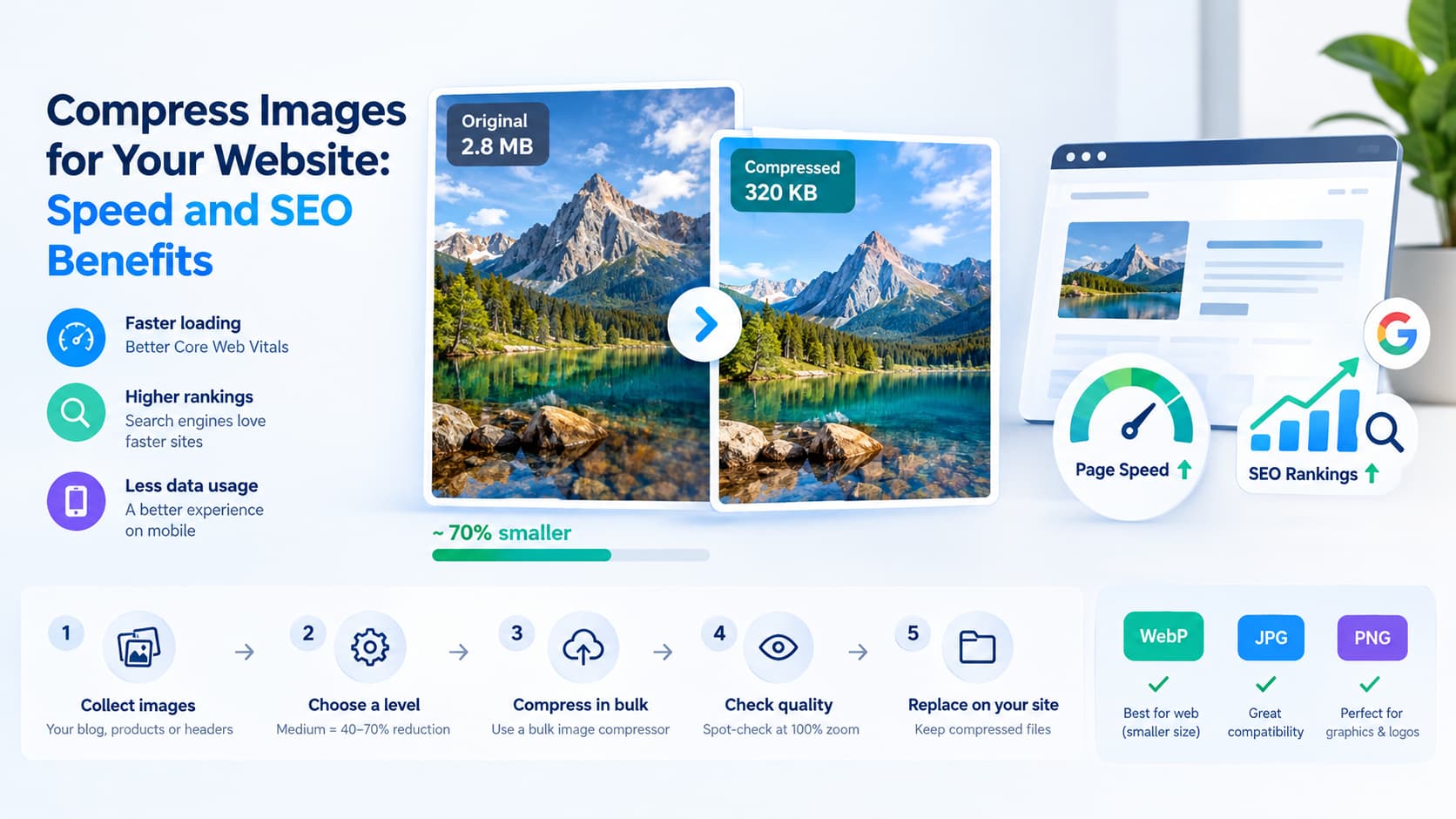
- Medium compression — the balanced default. Most photos shrink by 40–70% with no visible quality loss at normal viewing sizes.
- High compression — the strongest size reduction. Best for thumbnails, email attachments, and web pages where speed matters more than fine detail.
You can also add a filename prefix or suffix (for example, hero_ or _web) so every output file is renamed consistently.
Step 4 — Download the results
Download each compressed image individually, or use Download All to get the entire batch as one ZIP. All processing happens in memory — your images are not stored to disk.
Which Compression Level Should You Use?
There is no single "correct" level; the right answer depends on where the images will be used.
| Use case | Recommended level | Why |
|---|---|---|
| Website or blog images | Medium | Big savings, quality that holds up at card sizes |
| E-commerce product photos | Medium | Keeps detail where shoppers zoom in |
| Email attachments | High | Stays under attachment limits |
| Social media uploads | Medium or high | Platforms re-compress anyway |
| Photos you may re-edit or print | Low | Preserves detail for later work |
The general rule: start at Medium, compare the result to the original, and go higher only if you need to. You should be able to see a real size drop without noticing a quality drop.
How Much Can a Bulk Image Compressor Reduce File Size?
Results depend on the original files and the level you choose, but a realistic expectation for photographs is:
Original batch (20 photos, avg 3 MB):  ~60 MB
After Medium compression:              ~20–30 MB
Typical reduction:                     40–70% per file
PNG behaves differently: it uses lossless compression, so the visual quality never changes and the size drop comes from removing redundant data — often 10–40% for graphics and screenshots, much less for detailed PNG photos. For JPG and WebP the compression is quality-based (lossy): the lower the level, the smaller the file.
Every pass also strips metadata — EXIF, GPS coordinates, camera serial numbers — which trims the file size and protects privacy. That is a genuine benefit for images you share publicly.
Best Formats for Bulk Compression
- JPG (JPEG) — the default for photographs. Quality-based lossy compression; ideal when your set is mostly photos.
- PNG — lossless compression with transparency support. Use it for graphics, logos, screenshots, and product cut-outs.
- WebP — a modern format that usually beats JPG at the same quality with a smaller file. A strong default for web delivery.
For a mixed folder, you can keep each file in its original format; the bulk tool compresses JPG and WebP lossy-based and PNG losslessly, so you do not need to convert anything before compressing. If you want to change formats across a set, that is a separate step — see JPG vs PNG: which format should you use for the trade-offs.
Common Use Cases for a Bulk Image Compressor
Websites and SEO
Large images are one of the biggest drags on page speed, and page speed affects search rankings. Compressing a site's image set in one batch keeps every page light and consistent. Our guide on compressing images for your website covers the speed and SEO math.
Email attachments
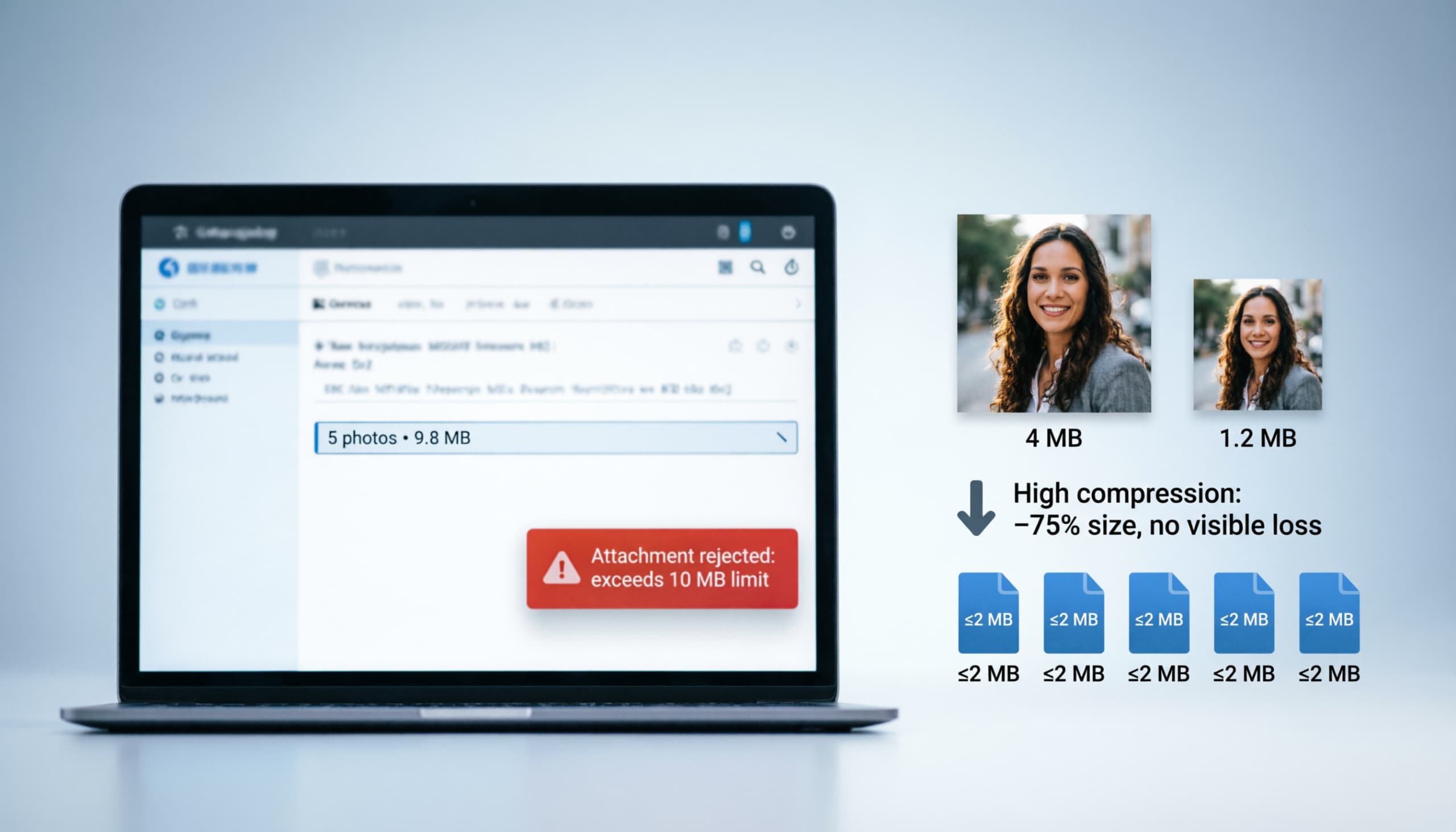
Corporate inboxes often cap attachments at 10 MB, and best practice keeps them far below that. Bulk-compressing a set of photos to High gets an entire attachment set under the limit without re-shooting. Details in compressing images for email attachments.
E-commerce product photos
A store's catalog is hundreds or thousands of images. Batch-compressing each product shoot keeps product pages fast without losing the detail shoppers zoom into.
Storage and backups
A folder of original camera exports can consume gigabytes. A compressed copy of the same set — kept separate from your originals — is lighter to sync, back up, and send.
Keeping Quality While Compressing in Bulk
The main risk of batching is picking a level that is too aggressive for every file in the set. A few habits keep quality safe:
- Batch by use case, not by folder. A batch of product photos and a batch of blog headers may want different levels even if they sit in the same directory.
- Compare before and after. Most compression tools show the size drop per file; open one or two results at 100% zoom to check edges, text, and smooth gradients.
- Stay at Medium for general use. Medium is the level where 40–70% reductions are common with no visible loss. Move to High only when a size limit forces you.
- Do not re-compress repeatedly. Compressing an already-compressed JPG stacks generation loss on generation loss. Compress once from the best-quality source you have.
A more detailed look at the settings that prevent quality loss is in our guide on compressing multiple images without quality loss.
Is Online Bulk Image Compression Safe?
Reputable online tools process your images in server memory and do not store them to disk. FileConv's compressor works that way: files are processed in memory, returned to you, and never written to disk, and all EXIF/GPS metadata is stripped on the way. If you have sensitive images, that metadata removal is a bonus, not a side effect you have to ask for.
You can compress a single image the same way — the image compressor handles one file or a full batch — and the companion guide how to compress images walks through the single-image decisions (format, quality, dimensions) in more depth.
Bulk Image Compressor FAQ
What is a bulk image compressor?
A bulk image compressor is a tool that compresses many images at once instead of one by one. You upload a set of JPG, PNG, or WebP files, choose one compression level, and the tool returns every file smaller — ready to download as one ZIP.
How many images can I compress at once?
On FileConv's bulk image compressor, you can upload up to 20 images per session, each up to 10 MB. For larger sets, split them into a few batches — your compression level and rename prefix/suffix stay the same, so the results stay consistent.
Will bulk compression reduce image quality?
Not at sensible settings. JPG and WebP use quality-based lossy compression, so the level you pick determines the trade-off: Medium typically gives a 40–70% size reduction with no visible quality loss. PNG is compressed losslessly, so its visual quality never changes.
Can I rename images while compressing them in bulk?
Yes. Bulk compression tools let you add a filename prefix or suffix that is applied to every file in the batch, so your outputs are named consistently (for example gallery_01.jpg, gallery_02.jpg).
Do I need to install anything?
No. A free online bulk image compressor runs in your browser — no software to install, and your files are processed in memory rather than stored on the provider's disk.
Is a bulk image compressor free to use?
FileConv's bulk image compressor is free, with no signup and no watermark. You upload your batch, pick a level, and download the compressed ZIP.
Compress Your Images in Bulk — Free
If you have a folder of photos that needs to shrink, the fastest route is a free bulk image compressor: upload up to 20 JPG, PNG, or WebP images, pick your compression level, and download the whole set as one ZIP — no signup, no watermark, and no files stored to disk.