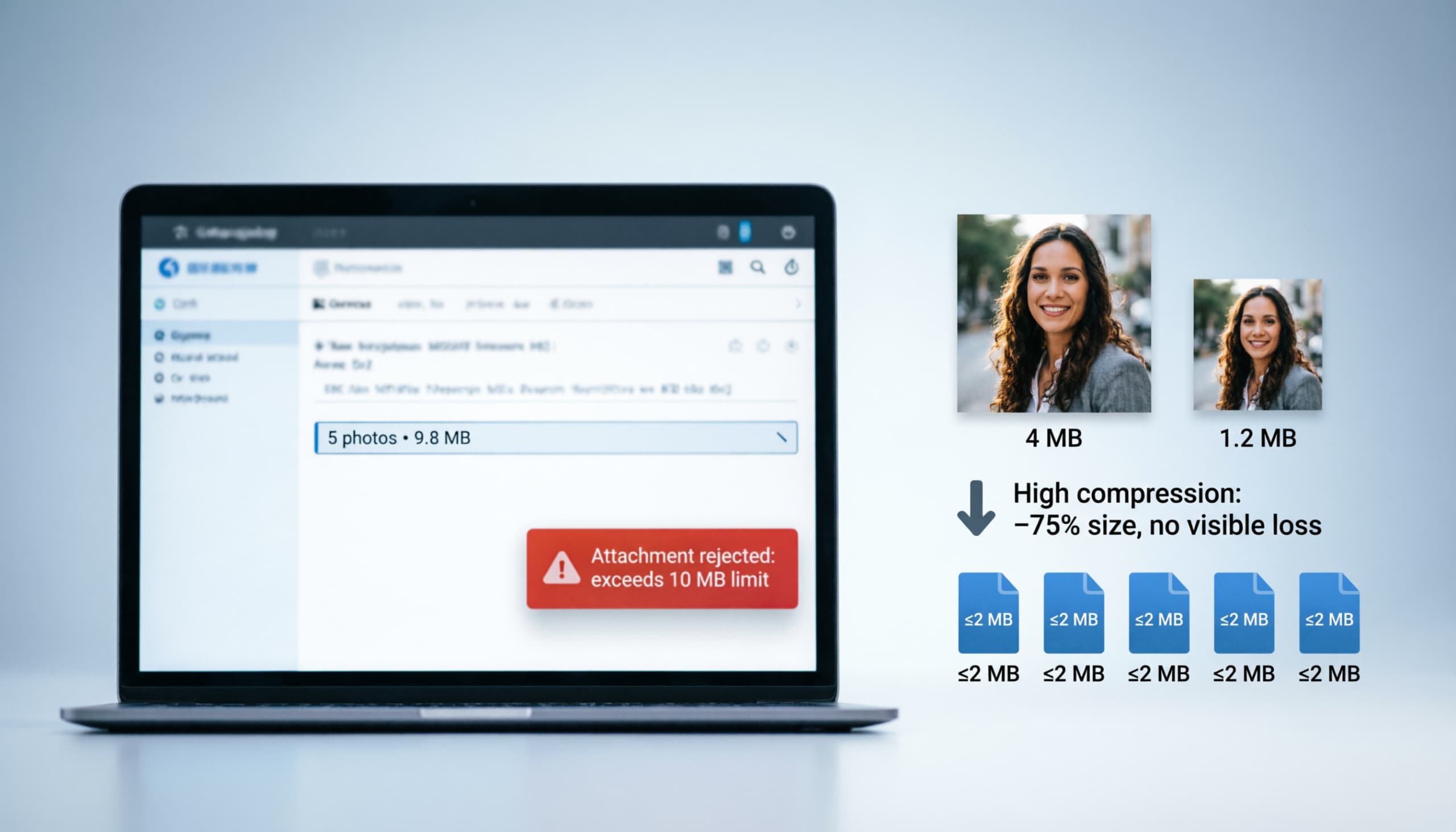
Email has hard rules that photography does not: attachments have size limits, and most inboxes enforce them strictly. A single 4 MB photo from a modern phone can push a message over a corporate 10 MB cap, and a set of event pictures can blow past it entirely. The fix is not to re-shoot or abandon the photos — it is to compress them until the set fits, with as little visible quality loss as possible.
This guide covers the email size limits you are actually up against, how much compression is safe for images people will read on a screen, and a fast workflow for getting a whole set under the limit at once.
The email size limits you are dealing with
The limits vary by provider and by organization, but the practical picture is:
| Context | Typical limit |
|---|---|
| Personal mailboxes (Gmail, Outlook.com, Yahoo) | ~20–25 MB per message |
| Corporate / Exchange inboxes | 10 MB is the common cap |
| Safe, fast-delivery target | ~2 MB per attached image |
Three consequences matter:
- The limit is per message, not per file. Your photos, the .eml/.msg overhead, and any other attachments share the same budget.
- "Under the limit" is not "under by a little." Leave headroom. A set that lands at 9.8 MB of a 10 MB cap will still fail once the mail server adds its own overhead — and it will still sit at the top of your recipient's "this is a big email" pile.
- Smaller is better for the reader too. Images that open instantly in the inbox get more views than files the recipient has to download and open separately.
Aim for roughly 2 MB or less per image as your working target: it clears every common cap, sends fast, and still displays fine on a phone or desktop screen.
How much compression is safe for email images?
Email images are viewed on a screen, usually at phone or laptop size — so they do not need print quality. That makes email one of the best cases for stronger compression.
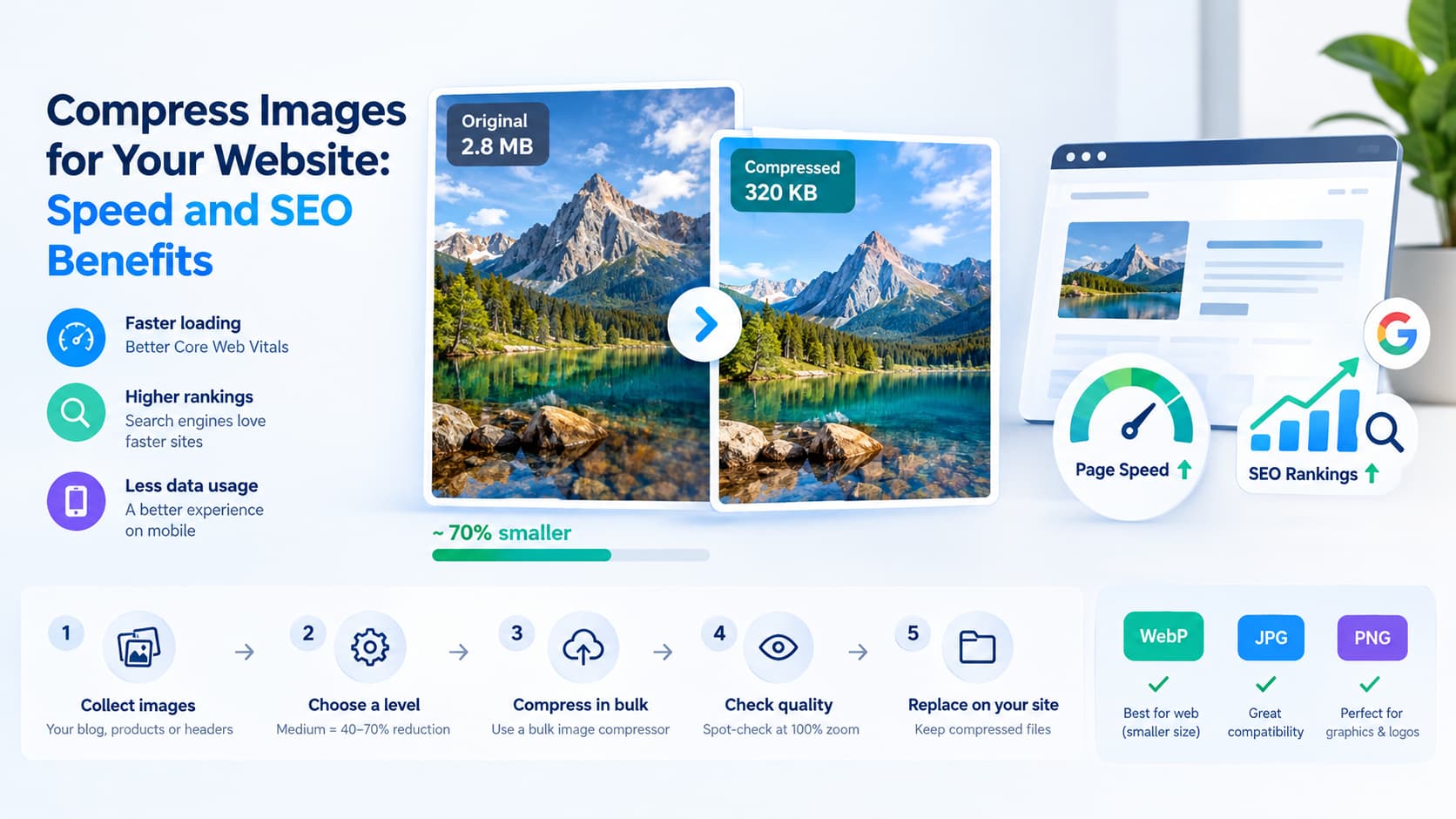
- High compression is the right default for email attachments. Expect a 60–80% reduction on photographs, with results that look perfectly fine at inbox and full-screen size.
- Medium is the fallback when an image contains fine detail you want to keep — text overlays, product features, close-up faces.
- Format matters less here than level, because the recipient will view the result on a screen regardless. JPG and WebP both work; keep PNG for graphics, logos, and screenshots, since it compresses losslessly and the visual result never changes.
The one rule that still applies: compress once, from your best source file. Re-compressing an already-compressed JPG stacks quality loss on quality loss, and an email image viewed on a phone does not justify that cost.
A fast workflow: get a set of photos under the limit
When you have more than one image — an event album, a product shoot, a report with figures — batch it:
- Estimate the budget. Count the images and multiply by your ~2 MB target. Five photos means aiming for under ~10 MB total.
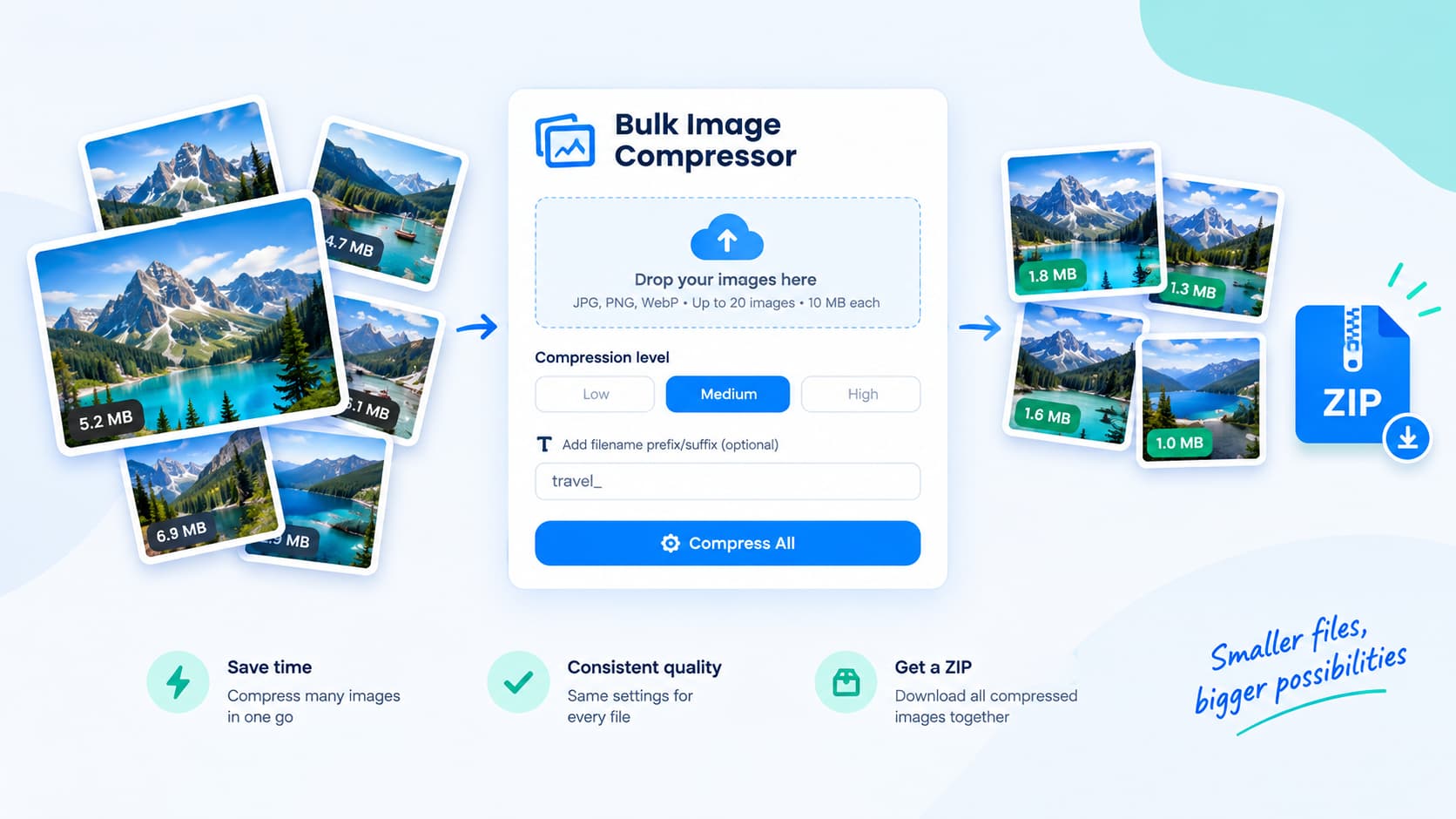
- Upload the set to a free bulk image compressor — up to 20 JPG, PNG, or WebP files, each up to 10 MB.
- Choose High compression for the whole batch (Medium for any image with fine detail or text).
- Add a prefix or suffix if the photos will be filed later — one rename pass for the entire set.
- Download the set as one ZIP, check the total size, and attach.
If the total is still over budget, you have two levers in the right order: drop a level of detail by removing one or two images the recipient does not need, and only then consider resizing. Resizing after compression is a second generation of loss; cutting scope is free.
Common email image problems, solved
- "My attachment was rejected." The message, not just the file, was over the cap. Compress the set to your ~2 MB-per-image target and re-send.
- "The photos look fine, the email is still slow." Slow-to-open attachments are a perception problem. A compressed set opens instantly and looks the same on screen.
- "I need the original later." Keep your originals out of the email entirely. The email carries the compressed working copies; the originals stay in your library.
- "I have more than 20 photos." Split into batches — the same compression level and rename pattern across batches keeps the set consistent. For very large sets, a ZIP archive of the compressed photos is usually the right container.
Related reading: the settings that keep a batch sharp are covered in compressing multiple images without quality loss, and the full batch workflow — formats, levels, and limits — is in the bulk image compressor guide.
Bottom line
Email image compression is a budgeting problem with a screen-quality floor: aim for about 2 MB per image, use High compression for a full batch, compress once from your best source, and keep the originals out of the message. Done that way, a set of phone photos that would have bounced at the server arrives, opens instantly, and looks exactly as good as the recipient needs.