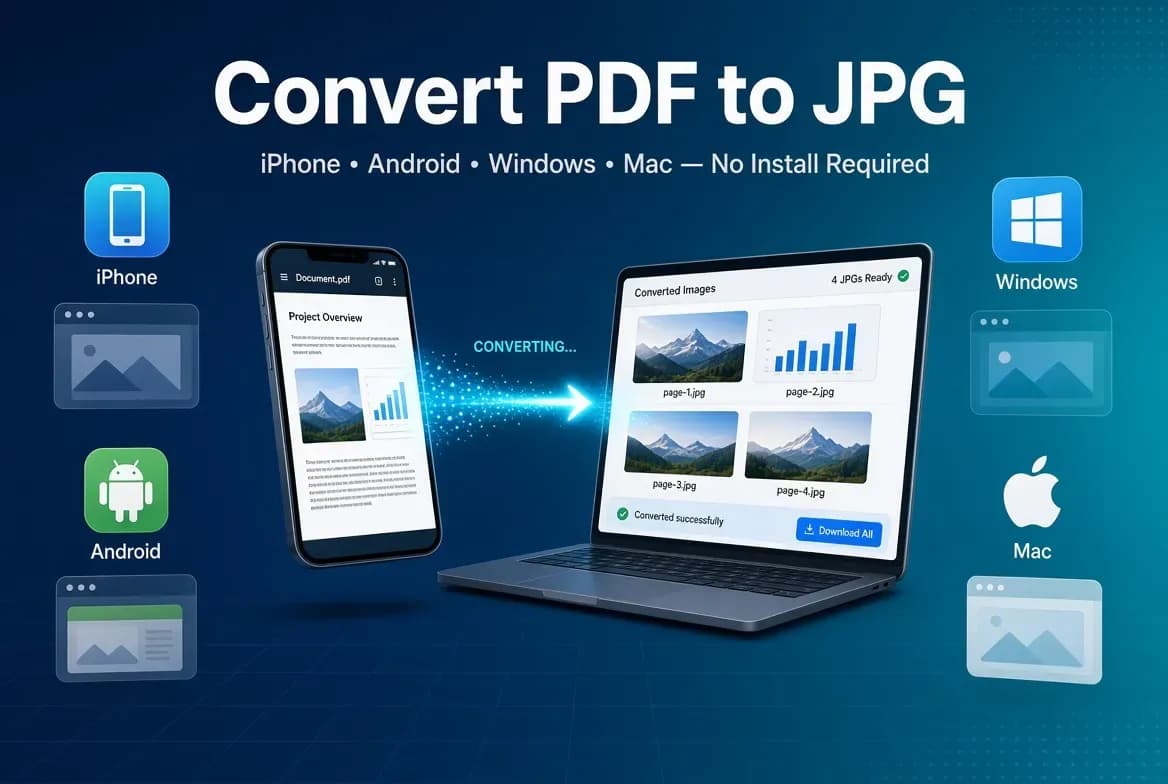
Converting a PDF to JPG is one of the most common file tasks on the web. You need it when you want to share a page on social media, drop a document into a presentation, edit a page in an image editor, or turn a printable document into an image for the web. The good news: you can do it in seconds, for free, and without installing anything.
This guide walks through the fastest way to convert a PDF to JPG, what the output quality looks like, and the few mistakes that turn a crisp page into a blurry one.
What is PDF to JPG conversion?
A PDF (Portable Document Format) keeps text, images, and layout locked together so it looks the same on every device. A JPG (JPEG) is a single image file. Converting a PDF to JPG means rendering each page of the document into a picture.
- Single-page PDF → one JPG image.
- Multi-page PDF → one JPG image per page, usually delivered as a ZIP so you can grab them all at once.
This is different from extracting the images already embedded inside a PDF. PDF to JPG re-renders the whole page — text and all — as a new image, which is what you almost always want.
The fastest method: convert online in three steps
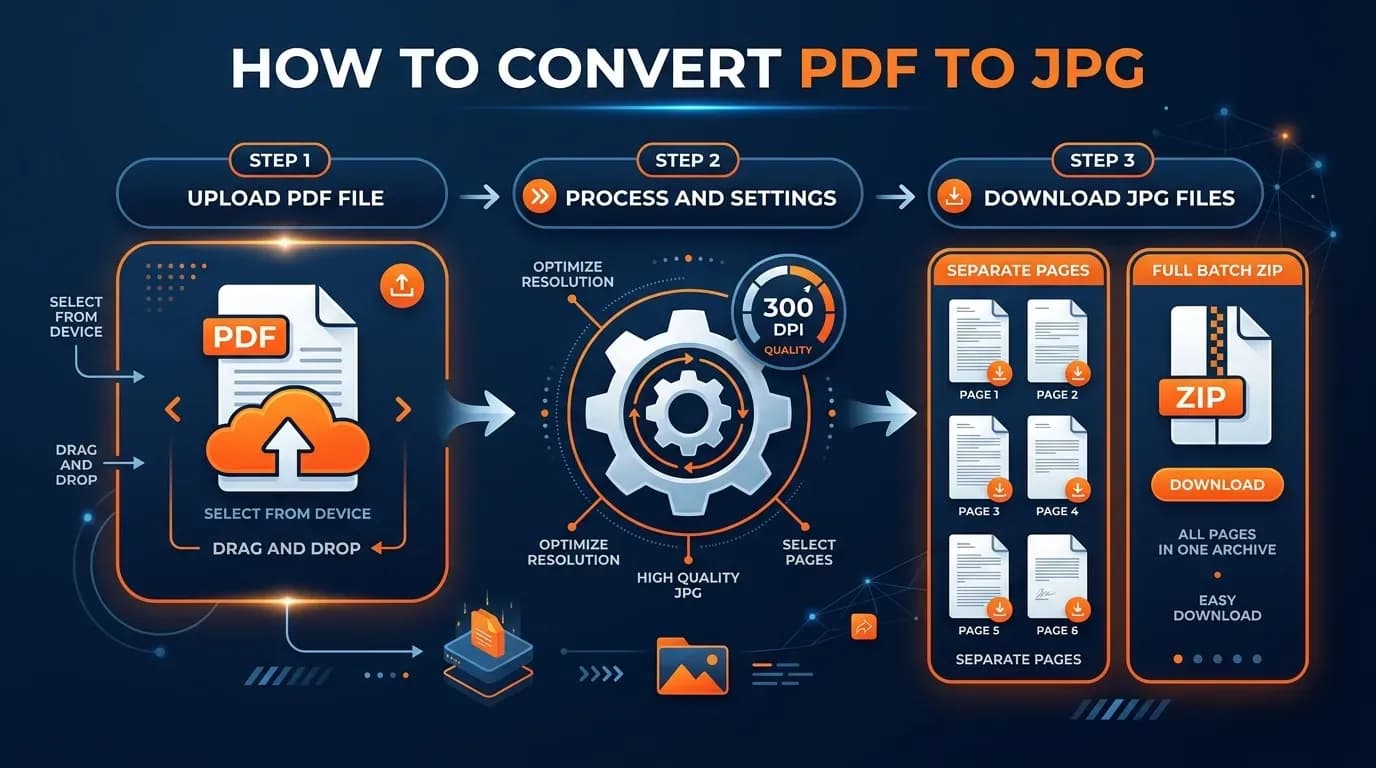
You do not need Adobe, a desktop app, or a phone app. A free online converter handles the job in your browser. Here is the exact flow.
Step 1 — Upload your PDF
Open FileConv's free PDF to JPG converter and drop your file into the upload area, or click to browse for it. PDFs up to 20 MB and 40 pages are supported, which covers the vast majority of documents, invoices, certificates, and presentations.
Step 2 — Convert
Click Convert to JPG. The converter renders each page to a high-quality JPG at 300 DPI. For a typical document this takes a few seconds.
Step 3 — Download
- A single-page PDF gives you one JPG file to download.
- A multi-page PDF gives you a ZIP archive containing a JPG for every page.
Your files are deleted automatically after conversion, so there is nothing to tidy up.
Converting PDF to JPG on your phone
Because the converter runs online, the same three steps work on a phone. On iPhone or Android, open the link in your browser, upload the PDF, and download the result. You do not need to install an app, and the downloaded image or ZIP is saved to your device like any other file.
What resolution do you get back?
By default the converter outputs 300 DPI. That is the sweet spot for both screen and print:
| Where you will use the JPG | Recommended DPI | Why |
|---|---|---|
| Website, email, social media | 72–150 | Small files load faster |
| Most documents and photos for print | 300 | Sharp at real-world sizes |
| Large-format or heavy zoom | 600 | Maximum detail |
If you want the reasoning behind the numbers, see our breakdown of what DPI to use for PDF to JPG.
Common mistakes that make the result blurry
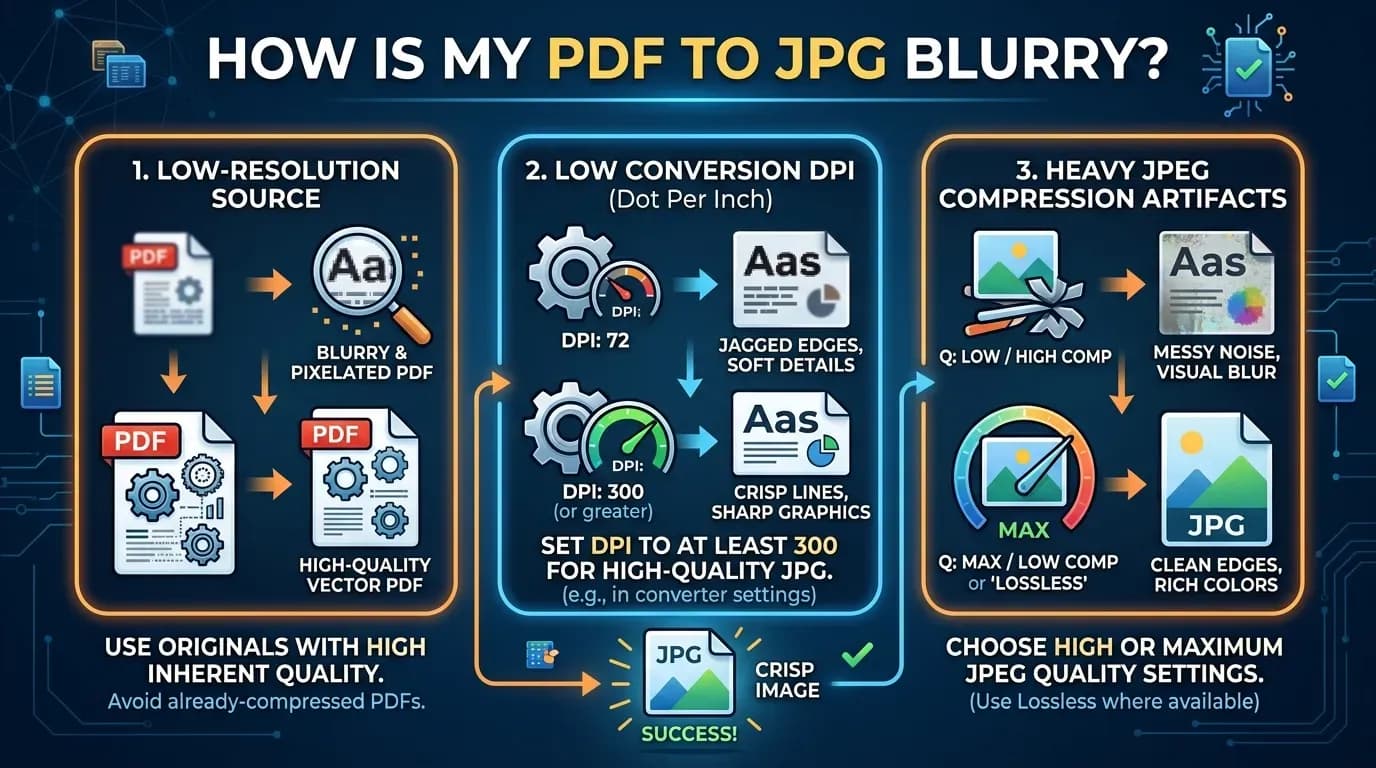
Most "why is my PDF to JPG blurry" problems come from one of three places:
- The source PDF is already low-resolution. If the original was a scanned or exported-at-low-quality document, no converter can add detail that is not there.
- The output DPI was set too low. A 72 DPI export looks fine in a thumbnail but pixelates when enlarged. 300 DPI avoids this for most uses.
- The JPG was compressed too hard. A very low JPEG quality setting introduces blocky artifacts around text and edges.
The fix is usually to convert at a higher resolution and a sane quality level — which is exactly what a 300 DPI online converter does by default.
FAQ
How do I convert a PDF to JPG for free?
Use a free online converter. Upload the PDF, let it convert, and download the JPG for each page. No account or payment is needed.
How many pages can I convert?
FileConv handles PDFs of up to 40 pages, so most documents convert in a single pass.
Will the text stay readable?
Yes. At 300 DPI, text on a standard page renders crisply and remains readable on screen and in print.
Is it safe to upload my document?
Your file is processed securely and deleted automatically after conversion. We do not keep or share it.
Bottom line
You do not need software to convert a PDF to JPG. Upload the file to a free PDF to JPG converter, wait a few seconds, and download a crisp 300 DPI JPG for each page. If your result looks blurry, the cause is almost always the source resolution or the output DPI — both of which this guide (and our DPI guide) cover.