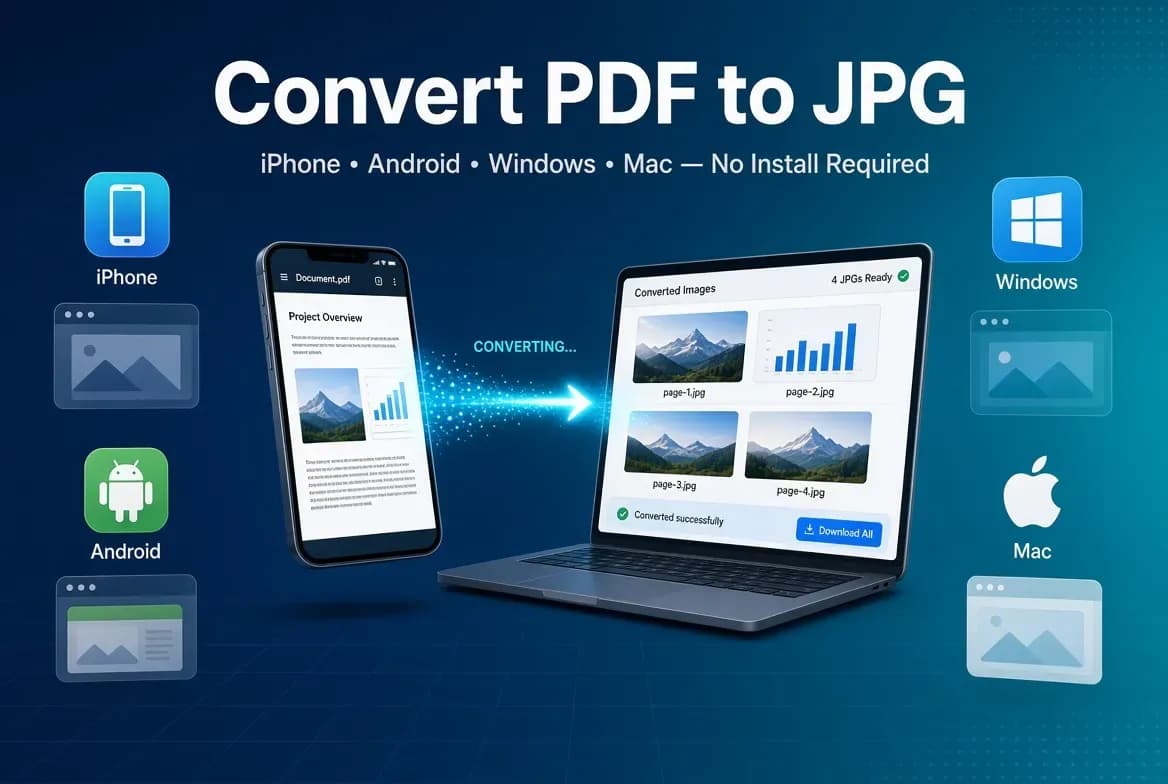
You often need a PDF page as an image while you are on the go — to post it, paste it into a message, or drop it into a slide. The good news is that you do not need to install a converter app on any device. The fastest method that works on an iPhone, Android phone, Windows PC, or Mac is the same: an online converter in your browser.
Here is the universal method first, then the device-specific details.
The fastest method that works on every device
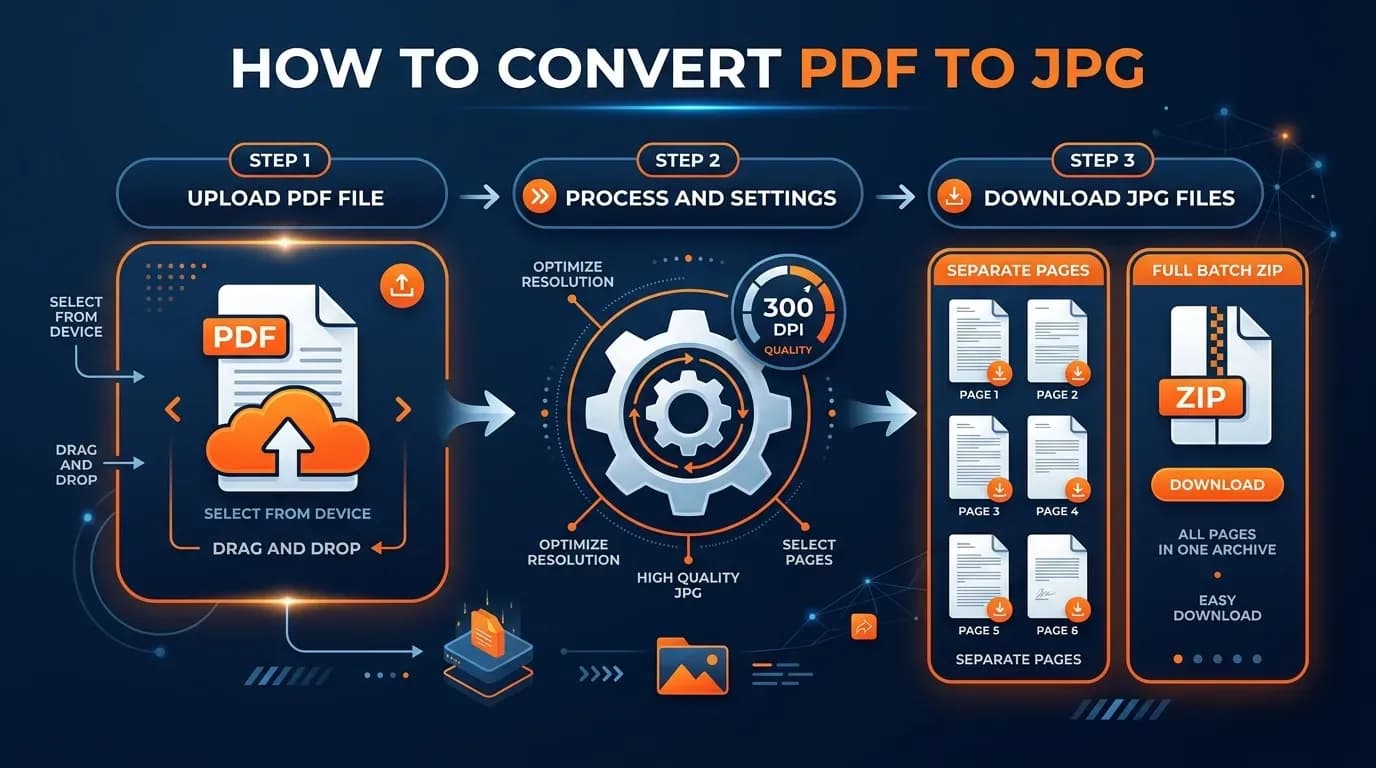
Because the converter runs online, the steps are identical wherever you are:
- Open FileConv's free PDF to JPG converter in your browser.
- Upload the PDF.
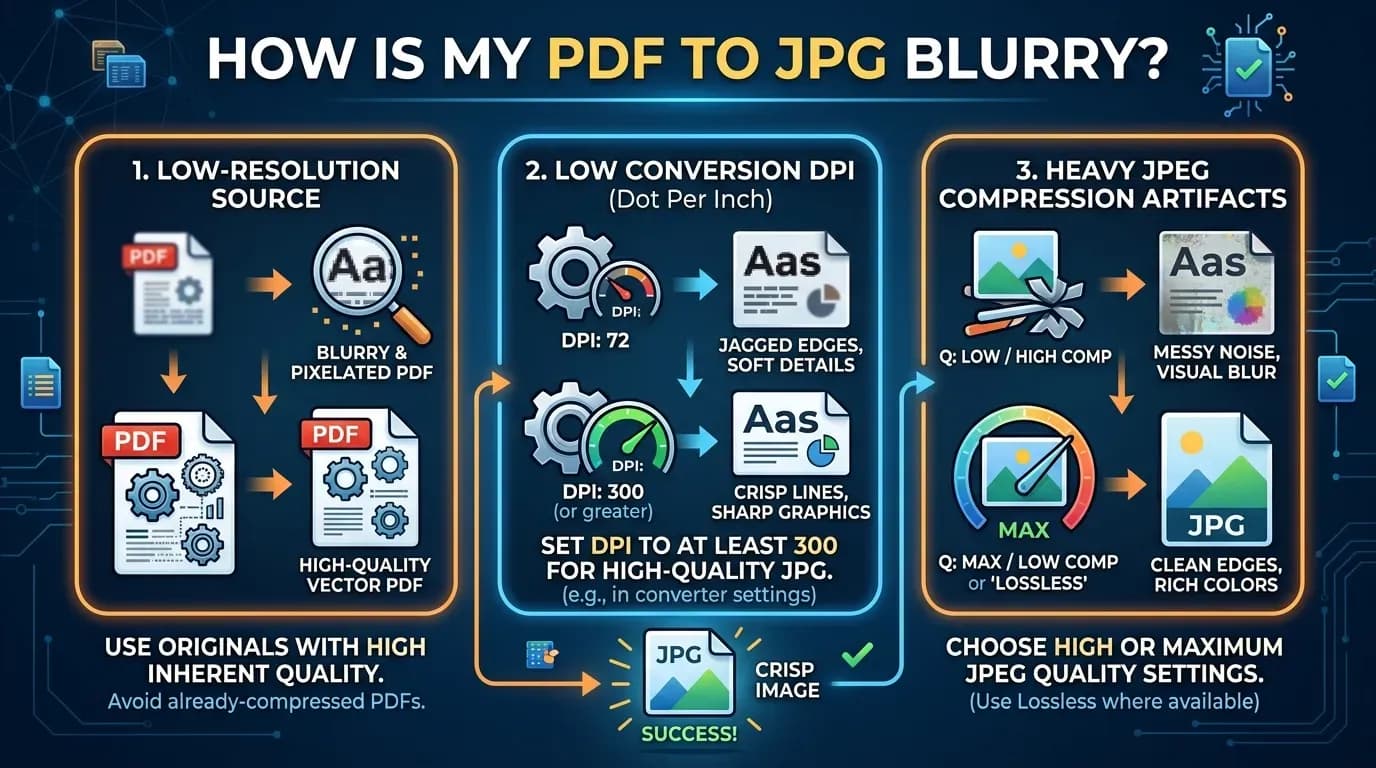
- Click Convert to JPG — each page is rendered at 300 DPI.
- Download the result: a single JPG for a one-page PDF, or a ZIP of JPGs for a multi-page PDF.
No account, no software, no watermark. Your file is deleted automatically after conversion. This works in any modern browser on a phone or a desktop.
On an iPhone
- Open the PDF link or your file in Safari (or any browser).
- Go to the online converter and upload the PDF from your Files app, Photos, or a downloaded file.
- Convert, then Save Image (for a single page) or download the ZIP and open it in Files to extract the pages.
If you already have the PDF in Files, you can also use the Share sheet → Scan Documents or a converter app, but the online route avoids installing anything and gives you a consistent 300 DPI result.
On an Android phone
- Open the converter in Chrome (or your default browser).
- Tap upload and choose the PDF from Files, Downloads, or a cloud drive.
- Convert and download the JPG or ZIP to your device.
Android's built-in Files app handles the downloaded ZIP, so you can pull out individual pages directly on your phone.
On Windows
- Open the converter in Edge, Chrome, or any browser.
- Upload the PDF from File Explorer.
- Convert and save the JPG or ZIP to a folder.
You do not need Microsoft Store apps or Adobe for this — the browser does the job. If you prefer to stay inside the operating system, you can also open the PDF in a viewer and use "Print to image," but that is slower and less consistent than the online route.
On a Mac
- Open the converter in Safari or Chrome.
- Upload the PDF from Finder.
- Convert and save the JPG or ZIP.
macOS's Preview app can export PDF pages, but producing a clean 300 DPI JPG per page is easier and more consistent through the online converter.
Which method should you use?
| Situation | Best method |
|---|---|
| Quick one-off conversion, any device | Online converter |
| You are on a phone and want no app | Online converter in the browser |
| You convert PDFs all day at work | Online converter (no installs to manage) |
| You are offline | A local app or built-in viewer export |
For almost everyone, the online converter is the answer: one method, the same crisp 300 DPI output, and nothing to install or update.
Bottom line
You do not need a different app for each device. Open a free PDF to JPG converter in your browser on an iPhone, Android, Windows, or Mac, upload the file, and download a crisp 300 DPI JPG for each page. Same steps everywhere, no software required.