When you convert a PDF to JPG, the single setting that most affects how your result looks is the resolution, expressed in DPI (dots per inch). Get it right and the page is crisp on screen and in print. Get it wrong and you end up with either a blurry image or a file that is far too large.
This guide explains what DPI actually means, the three settings that matter, and how to pick the right one for your use.
What DPI actually means
DPI stands for dots per inch. It describes how many marks of ink (or, for a digital file, how many pixels) there are in every linear inch of the image.
- A higher DPI means more pixels packed into the same inch, so more detail and a sharper image.
- A lower DPI means fewer pixels per inch, so the file is smaller but the image is softer.
The important nuance: DPI is a density, not a total size. A 300 DPI image is not automatically "better" than a 150 DPI image — it is sharper per inch. The total number of pixels is what determines the file's detail, and DPI tells you how those pixels map to a physical size.
DPI vs PPI (a quick clarification)
You will see two terms used interchangeably:
- DPI — dots per inch — the printing term.
- PPI — pixels per inch — the screen term.
For a JPG created from a PDF, they refer to the same number: the pixel density of the image. Screens do not print dots, but the density value is identical, so most tools and guides use DPI for both.
The three settings that matter: 150, 300, 600
In practice you will choose from three common densities:
| DPI | Typical use | File size | Result |
|---|---|---|---|
| 150 | Web thumbnails, drafts, email | Small | Fine on screen, soft when enlarged |
| 300 | Documents, photos, standard print | Medium | Sharp on screen and in print |
| 600 | Large-format, posters, heavy zoom | Large | Maximum detail |
150 DPI is the right call when the image will only ever live on a screen at modest size — a website thumbnail, an email attachment, a quick share. It keeps files small and loads fast.
300 DPI is the all-round default. At 300 DPI, a standard US Letter page (8.5 by 11 inches) is about 2,550 by 3,300 pixels. That is the resolution most print shops and professional documents expect, and it still looks perfectly sharp on any modern screen.
600 DPI doubles the pixel count of 300 DPI and is reserved for large-format work (posters, banners) or situations where the image will be zoomed in very closely. For everyday documents it mostly bloats the file size without a visible benefit.
What DPI do I need for my use?
- Web, blog, or social media: 150 DPI is plenty. Smaller files and faster loads.
- A document you will print (A4 or Letter): 300 DPI.
- A photo you will print at 4x6 or 8x10: 300 DPI.
- A poster, banner, or large format: 300 DPI minimum, 600 DPI if the budget allows the file size.
- An archive or reference copy you may crop into later: 300 to 600 DPI.
Why 300 DPI is the default (and why our converter uses it)
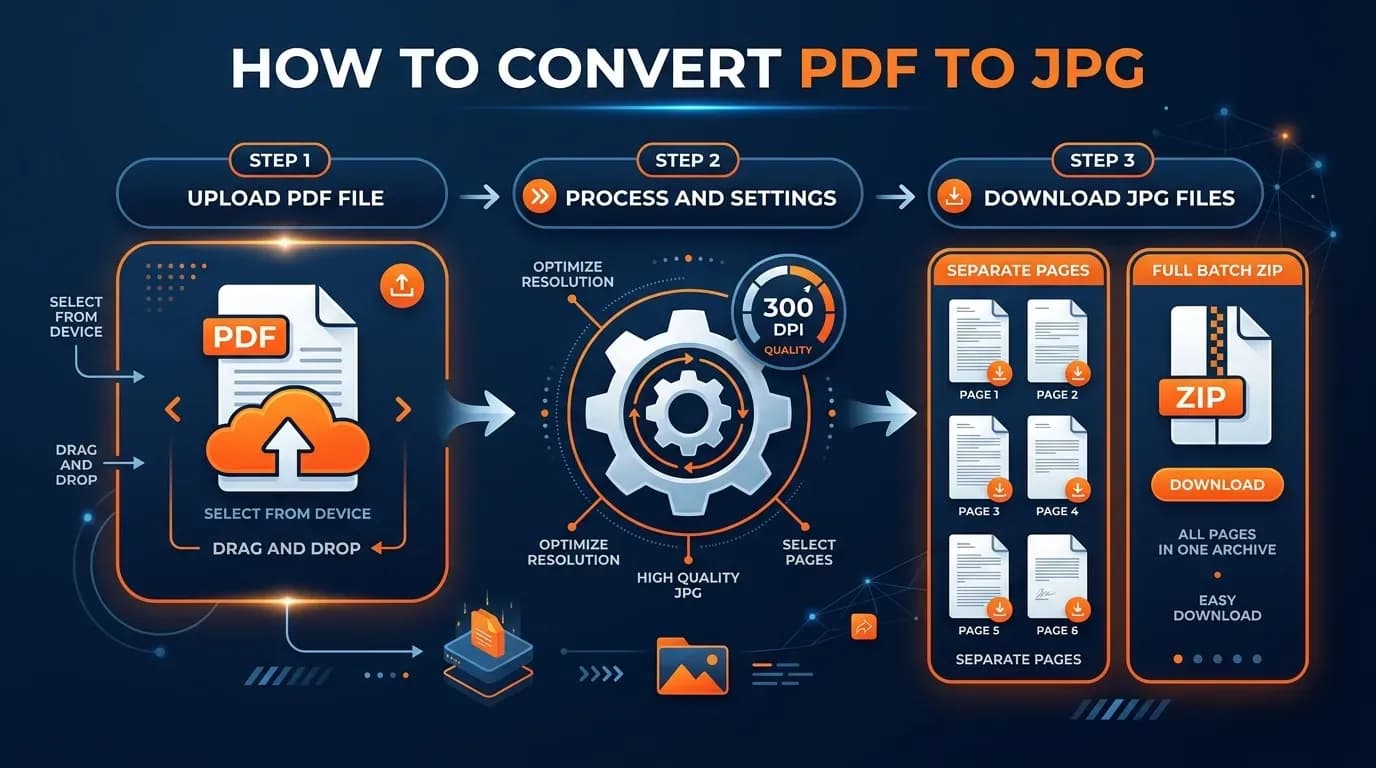
300 DPI is the sweet spot because it satisfies the two most common requirements at once: it is sharp enough to print, and the file is not so large that it is painful to upload, share, or store. That is why FileConv's PDF to JPG converter renders every page at 300 DPI by default — it is the setting that works for the widest range of real-world uses without you having to think about it.
If you convert at 300 DPI and the result still looks soft, the problem is usually not the DPI but the source PDF — see our guide on fixing blurry PDF to JPG output.
How to check the DPI of a JPG
To see the density of a JPG:
- Windows: right-click the file → Properties → Details. Look for the horizontal and vertical resolution.
- macOS: open in Preview → Tools → Show Inspector → the Image tab lists the resolution.
- Browser: many image viewers and online checkers will report PPI from the file metadata.
If the value is blank or low, the source was low-resolution and no converter can recover detail that was never captured.
FAQ
Is 300 DPI enough for printing?
Yes. 300 DPI is the standard for high-quality print. A Letter page at 300 DPI is roughly 2,550 by 3,300 pixels.
What is the difference between DPI and PPI?
DPI (dots per inch) is the print term and PPI (pixels per inch) is the screen term. For a converted JPG they are the same density value.
Does higher DPI always mean better quality?
No. Higher DPI means more detail per inch, but it also means a larger file. For on-screen use, 150 DPI is usually plenty, and 600 DPI is often more than you need.
Bottom line
Match the DPI to where the image will live: 150 DPI for the web, 300 DPI for print and general use, 600 DPI for large-format or heavy zoom. When in doubt, 300 DPI is the safe default — and it is exactly what you get when you convert a PDF to JPG online.