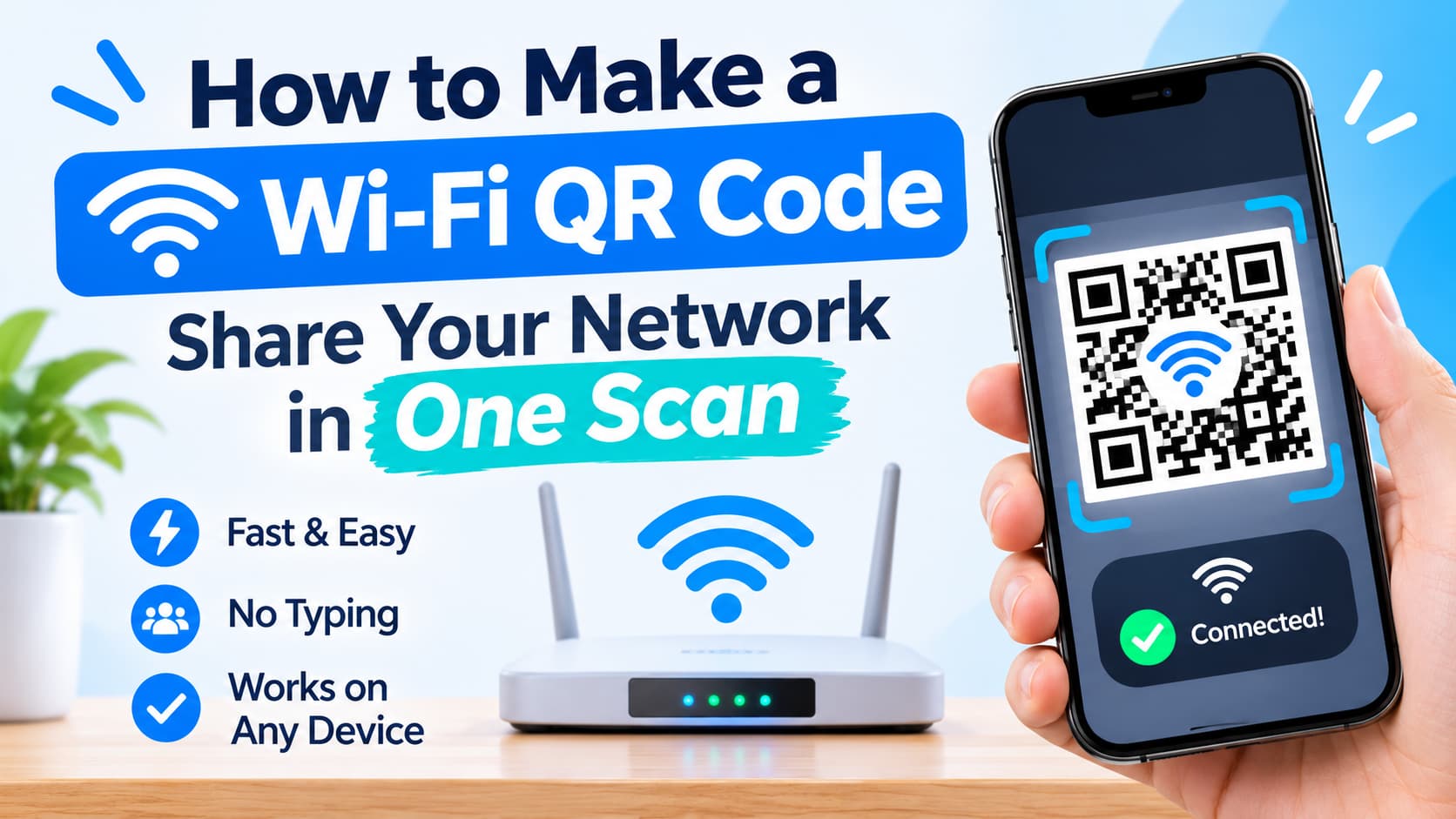
Asking a guest for your Wi-Fi password is a small inconvenience. Watching them type an 18-character WPA2 password — wrong three times, then "is that a zero or an O?" — is a small catastrophe. A Wi-Fi QR code removes the whole conversation: one scan, and the network is already selected with the password filled in.
This guide is how to make a Wi-Fi QR code correctly: what is actually inside the code, how each security type works, how special characters are handled, and where the code should live. You will build the whole thing in your browser with FileConv's free QR code generator — no account, no upload, no watermark.
What a Wi-Fi QR code actually contains
A Wi-Fi QR code is not a special binary format. It is one line of text, and phones have agreed to recognize it:
WIFI:T:WPA;S:MyNetwork;P:MyPassword;;
The fields:
| Field | Meaning | Example |
|---|---|---|
WIFI: | Marker that tells the phone this is Wi-Fi data | — |
T: | Security type: WPA, WPA2, WPA3, WEP, or nopass | WPA2 |
S: | The network name (SSID) | MyNetwork |
P: | The password | MyPassword |
;; | Terminator — always present, even when fields are empty | — |
Three properties of this structure explain everything about Wi-Fi QR codes:
- The password is in the code. There is no backend, no lookup, no redirect. Scanning decodes the text locally, and your phone pre-fills the join dialog from it.
- Nothing expires. The code is data, printed. It works in ten years, with no account and no subscription — the same reason static QR codes are the better choice for almost every real-world use.
- The code only joins; it does not check anything. If the password in the code does not match the network, the phone will report a failed connection. The code is as correct as the password you typed when you made it.
Special characters
If your SSID or password contains \, ;, : or ", those characters must be escaped with a backslash in the payload — otherwise a password like pass;word would be cut off at the semicolon. You do not need to do this yourself: FileConv builds the payload and escapes special characters for you. This is one of the reasons to generate the code with a tool instead of typing the WIFI: line by hand.
Step 1. Know your network details
Before generating, have three things from your router:
- The SSID — the exact network name, case-sensitive.
CoffeeShopandcoffeeshopare different networks. - The security type — most home routers today are WPA2 or WPA3; WPA is the older variant; WEP is legacy and insecure (if you are on WEP, the fix is a new router, not a better QR code); an open network has no password.
- The password — if the network is not open.
If you cannot find the password, the router's label or admin page usually has it, and most routers can show or reset it. This is not a step the QR code can fix: a wrong password in the code means every scan fails at the join step.
Step 2. Generate the code
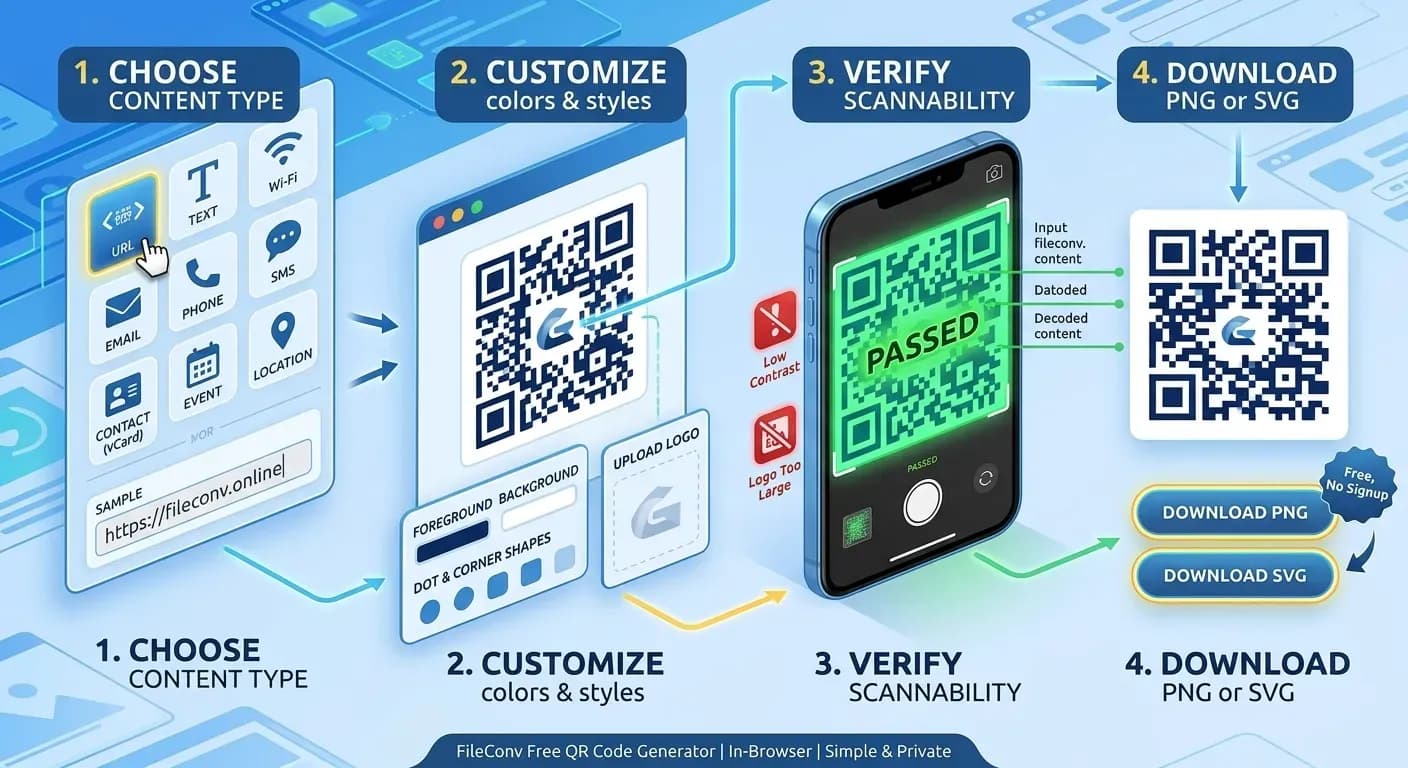
- Open the QR code generator.
- Choose WIFI as the content type.
- Enter the network name (SSID) exactly as your router shows it.
- Pick the security type that matches your network (WPA / WPA2, WPA3, WEP legacy, or Open).
- Enter the password — or leave it empty for an open network.
- If your network is hidden (SSID not broadcasting), tick the hidden-network option so phones know which network to look for.
- Run the scan check — the generator decodes the exact image it will export and reports the network name and password it read back.
- Download as PNG or SVG.
That is the entire workflow. Nothing you typed leaves your browser: the payload, the SSID and the password are assembled locally and rendered into the image in front of you.
A note on hidden networks
Hidden (non-broadcasting) networks are the one case where a QR code is genuinely useful rather than just convenient: a phone that does not already know the SSID will not even see the network in its list. The code tells the phone exactly what to scan for. If you run a hidden network, print the code somewhere the people who should join can find it.
Step 3. Print and place it
- Size: Wi-Fi codes carry a moderate amount of data, so they scan comfortably at about 2–3 cm in print. For a wall or tabletop stand, 3–5 cm is a good size; the QR code sizing guide has the reasoning if you are unsure.
- Format: PNG for the stand or the print shop; SVG if the code will go into a larger design and get resized.
- Quiet zone: keep the white border around the pattern intact — it is part of the code, not decoration.
- Placement: the code should live where the phone is already out: kitchen table, front desk, reception, classroom door, hotel room card.
Who sees the password — and what that means
Be clear-eyed about the trade:
- Anyone who scans the code gets the credentials. The password is in the pattern; there is no way around that with a static code. For guests, clients, students and customers, that is the feature.
- There is no revocation. A printed Wi-Fi code does not depend on any service, so it also cannot be remotely disabled. Change the network password and you have a new code — generate it in seconds and swap the print.
- No tracking, by design. Every scan is a local decode. No service sees your network name, your password, or who joined. If that matters to you, it is a structural property of static codes, not a setting you can switch on later.
Public posting changes the math. A code on your own wall shares the password with people you let in. A code on a public surface shares it with everyone who walks past — fine for a business guest network, wrong for a home network. If you need public access, the correct answer is a separate guest SSID with its own password, not your main network's code on a public table.
Troubleshooting
- Phone shows the network but says "incorrect password." The password in the code does not match the network — usually a typo made at generation time, or a password that changed since. Regenerate with the current password and rescan.
- Phone joins but has no internet. The QR code only handles joining the network. If the network itself is down, or the router blocks that device, the join succeeds and the internet does not. Test with another device to separate the two problems.
- Scanner app cannot find the code but the camera can (or vice versa). Recent Android and iOS cameras decode QR codes natively — no third-party app needed. If one method fails, the code is usually fine; try the other.
- Code worked, stopped working. The credentials changed (router reboot with a reset, carrier update, manual change). The code contains the old password; regenerate.
- Dense code, small print, fails from arm's length. Long SSIDs and long passwords make denser patterns. Print the code larger or export at a higher resolution — the not-scanning guide covers the diagnosis in detail.
Frequently asked questions
What does a Wi-Fi QR code contain?
One line of text: WIFI:T:…;S:…;P:…;; — the security type, the SSID and the password. Your phone decodes it locally and pre-fills the join dialog. No server is involved, ever.
Is it safe to share my Wi-Fi password as a QR code?
It is as safe as reading the password aloud: anyone who scans the code gets it. That is the intended behavior for guests and customers. Do not post a home network's code in public; for public access, create a separate guest network.
Do Wi-Fi QR codes work without internet?
Yes. The network details are in the code itself, so scanning and joining never touch a server. The code works offline, with no account, and does not expire.
Does a Wi-Fi QR code work for hidden (non-broadcasting) networks?
Yes, and it is one of the best uses. The code includes the SSID, so the phone knows exactly which network to look for even though it is not advertised.
Can I change the password after printing the code?
The printed code keeps the old password — it is static data with no backend. Change the network password, generate a new code (it takes about a minute), and replace the print.
Ready to make yours? Create a Wi-Fi QR code in your browser →