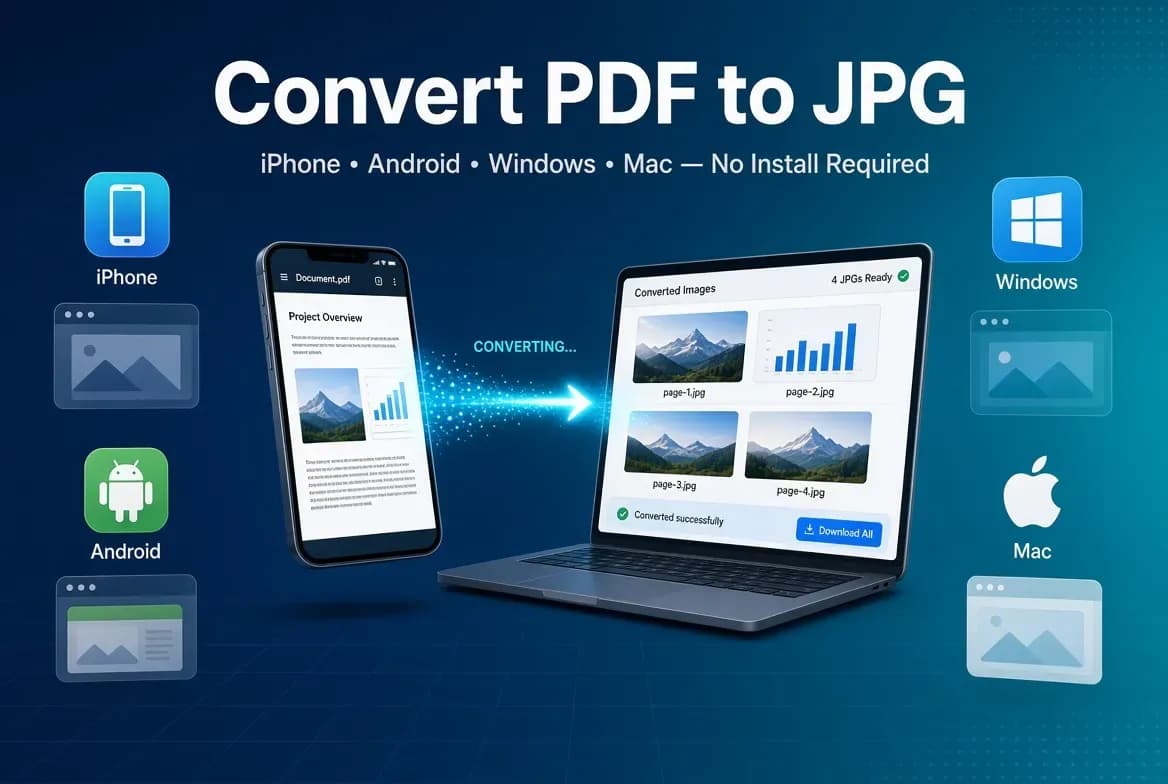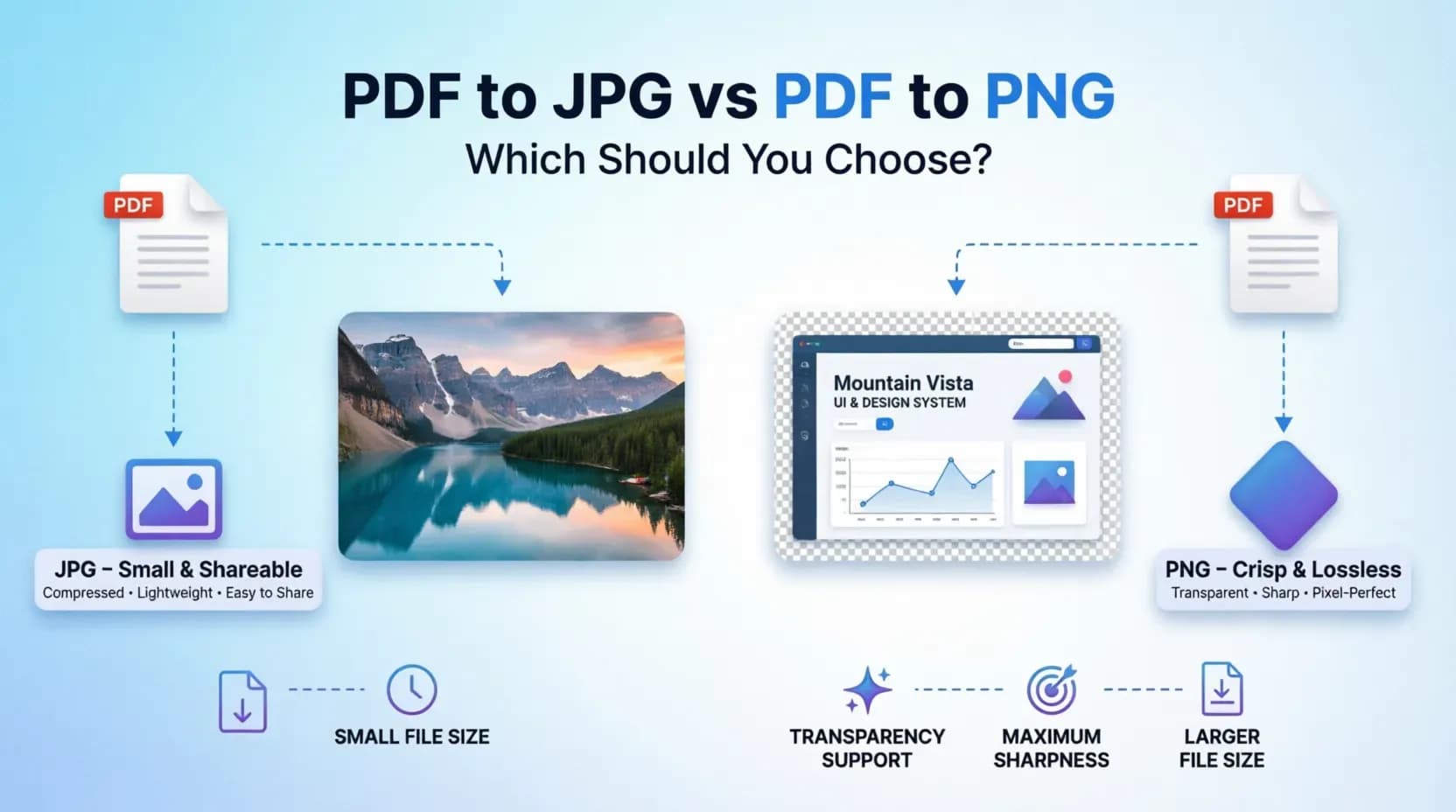
After you convert a PDF, you usually have a choice of output format — most commonly JPG or PNG. They both look fine at a glance, but they behave very differently when it comes to file size, sharpness of text, and whether you can keep a transparent background.
This guide compares the two so you can pick the right one in about ten seconds.
The short answer
- Choose JPG when the page is a photo or a normal document and you want a small file that is easy to share.
- Choose PNG when the page has sharp text, line art, or a transparent background, and you want it to stay crisp at larger sizes.
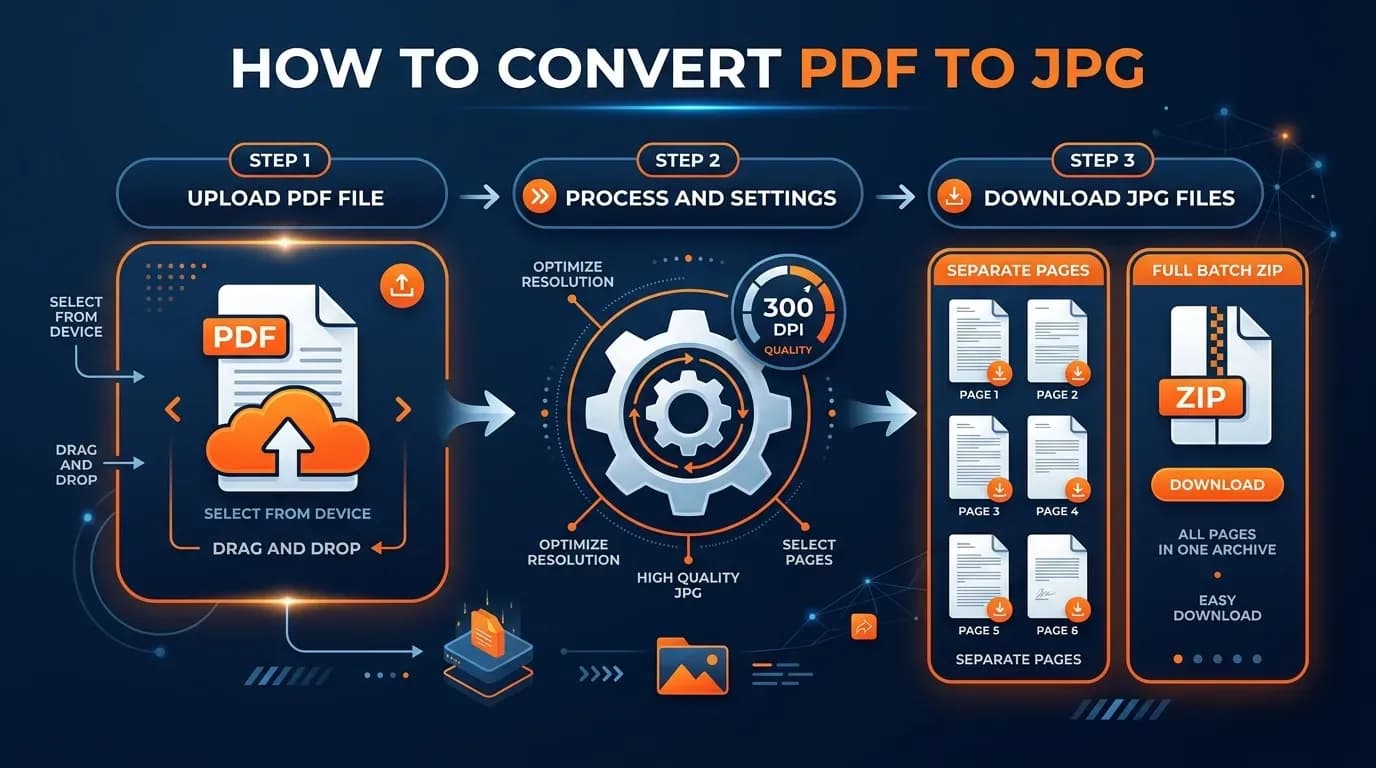
If you are unsure and the page is a typical document, JPG at 300 DPI is the safest default.
JPG: small and fast
JPG (JPEG) is a lossy format — it compresses the image by discarding some data, which is what makes the file small.
Strengths
- Much smaller file size for the same visible quality, especially for photos.
- Universally supported everywhere.
- Ideal for images with gradients and photography.
Weaknesses
- No transparency — every pixel has a solid color, so backgrounds become white (or whatever you flatten them to).
- Repeated saving and editing can introduce blocky compression artifacts, especially around sharp text and edges.
For a document page full of text, JPG can still look great at a good resolution — but because it is lossy, very fine text can develop a slightly soft halo if the quality is pushed too low.
PNG: crisp and lossless
PNG is a lossless format — it stores the image without throwing data away, so what you see is exactly what was rendered.
Strengths
- Perfectly sharp edges and text, even at high zoom.
- Supports a transparent background, which JPG cannot do.
- No quality degradation from re-saving.
Weaknesses
- Larger files, especially for photo-like content.
- No benefit for plain photographs — it just makes the file bigger.
JPG vs PNG for a converted PDF: head to head
| Factor | JPG | PNG |
|---|---|---|
| Compression | Lossy (smaller files) | Lossless (larger files) |
| Transparency | No | Yes |
| Text and line sharpness | Good at high quality | Excellent |
| Photo-like pages | Excellent | Good, but bigger |
| File size | Smaller | Larger |
| Best for | Sharing, web, print documents | Screenshots, graphics, transparency |
Which should you pick, by use case?
| Your page is… | Pick | Why |
|---|---|---|
| A photo or photo-heavy slide | JPG | Smaller, looks great |
| A normal text document | JPG (300 DPI) | Small and sharp enough |
| A screenshot with UI or code | PNG | Crisp edges and text |
| A page that needs a transparent background | PNG | Only PNG supports it |
| A page you will edit or crop in an editor | PNG | Lossless, no artifact buildup |
| Something to email or post online | JPG | Small and fast |
Converting your PDF to the right format
If your goal is a JPG, the fastest route is a free online PDF to JPG converter — upload, convert at 300 DPI, download.
If you need a PNG, or you want to switch between JPG, PNG, and WebP for the same image, use a free image format converter to change the output format without losing quality you can see.
And if you are still deciding between the two formats in general, our longer JPG vs PNG comparison covers the formats themselves in depth.
Bottom line
JPG is the default for most PDF-to-image jobs: small files, sharp at 300 DPI, easy to share. PNG is the upgrade whenever you need transparency, perfectly crisp text or line art, or a lossless master to edit. When you are converting, start with JPG and switch to PNG only if a specific requirement demands it.